You have likely experienced the moment when, upon connecting a laptop to a conference room TV, an email notification popped up for everyone to see. The participant list, the chat panel, and your desktop wallpaper are all displayed exactly as they appear on your machine.
To avoid this, people disable mirroring, drag windows manually to the external display, and arrange the layout before starting the meeting. This takes 30 seconds to a minute every time—and twice that if someone unfamiliar handles it. As a result, quite a few meeting rooms default to the habit where "nobody uses the TV, and everyone just looks at their own laptop."
Installing dedicated meeting room equipment (Google Meet hardware) solves this, but incurs hardware expenses and licensing fees per room. For organizations with only two or three meeting rooms, years often pass without taking the leap on that level of investment.
Rolling out gradually from August 26, 2026, Room Display mode directly benefits these meeting rooms that lack dedicated hardware but have a TV.
Meet automatically separates the TV display from your personal screen
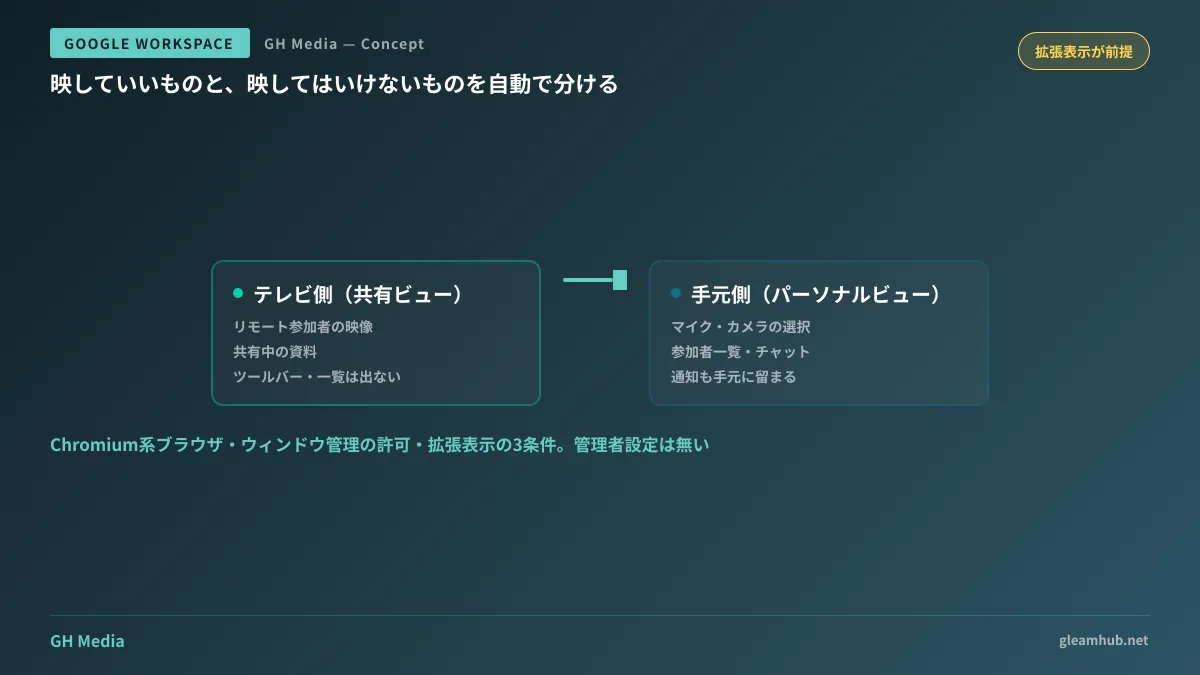
When you join a meeting with your laptop connected to an external display, Room Display mode divides the screens into two distinct roles.
The TV side (Shared View) displays only remote participants' video and shared presentation materials full-screen without empty margins. Toolbars and participant rosters do not appear. Only what meeting room attendees need to see is shown.
Your laptop (Personal View) serves as the control console. Selecting microphones and cameras, managing screen sharing, the participant list, chat, and the Ask Gemini panel all remain on this screen. Whatever you open on your laptop will not appear on the TV.
In other words, Meet takes over the task of sorting what should and should not be displayed, which previously had to be managed by hand. Dragging windows across displays is also no longer needed, as content is automatically routed to the TV upon connecting.
When joining a meeting, select "Use Room Display mode" under "Other joining options" on the pre-join screen. If a TV is detected, this option will be pre-selected by default.
Three operational requirements, all determined by meeting room setup
While it is a convenient feature, if certain prerequisites are unmet, it simply will not appear. Here is what to verify before testing a meeting room.
1. Must be a Chromium-based browser. Google Chrome and Microsoft Edge are supported. Because participants join through the browser rather than a desktop app, separate instructions for meeting room use must be provided if your organization's standard browser is different.
2. Window management permission must be granted. This permission allows the browser to manage multiple displays and prompts for consent on first use. If a shared laptop is kept in the meeting room, granting this permission in advance prevents snags on the day of the meeting.
3. Must be set to extended display mode (not mirroring). This is where users get tripped up most often. Meeting room laptops are frequently configured to mirror displays—showing the same image upon connection—which prevents separating views across two screens. Switching display settings to extend is a single toggle on both macOS and Windows, but to someone unfamiliar, it makes the feature look as if it does not exist at all.
There is another operational aspect to keep in mind: this feature has no administrator controls. It cannot be toggled on or off in the Admin console or targeted to specific organizational units; it simply appears by default as an option for eligible users. Instead of being manageable, the reality is that you simply wait for the rollout date to start using it.
Does this change whether to purchase dedicated hardware?
Room Display mode does not make Meet hardware obsolete. The deciding factors are "how many people are in the room" and "who connects their device."
In a laptop-and-TV setup, audio and video rely on the laptop's built-in microphone and camera. While practical for two to three people, voices from distant seats cannot be picked up in rooms where six or more sit around a conference table. This is outside the scope of Room Display mode and calls for peripherals such as conference microphones or dedicated hardware.
Another factor is that someone must connect their own laptop each time. Dedicated hardware remains permanently installed in the room, starting meetings simply by selecting them from the calendar. The more frequently a room is used, the more this difference adds up.
The decision can be structured as follows:
- Rooms with few attendees and moderate usage: Room Display mode is very likely sufficient. Test this first before considering dedicated hardware.
- Primary meeting rooms used daily by large groups: Dedicated hardware retains an edge in audio quality and frictionless meeting starts.
- Rooms where the best fit is unclear: Testing for a month after rollout will reveal whether connecting laptops falls on a specific person (meaning the burden concentrates on certain individuals).
In conference room settings, network bandwidth can also cause issues where video appears grainy despite installing dedicated hardware. Troubleshooting this was covered in Restricting Meet Video Bandwidth with Admin Settings.
If in-person meetings increase, decide how to handle meeting records as well
Adopting Room Display mode makes gathering in meeting rooms much smoother. When that happens, automated note-taking for in-person meetings is often considered alongside it. While the convenience aligns, the necessary preparations are entirely distinct.
Because automated in-person notes involve recording voices in the room, notifying attendees and establishing storage locations and sharing permissions for generated notes must be settled beforehand. These considerations were detailed in What to Decide First for In-Person Note-Taking Features. When paired with initiatives to improve room usability, attendee notifications are an area prone to oversights.
What to do next
First, open the PC in your organization's most frequently used meeting room and verify that the external display setting is not set to mirroring. Simply switching it to extended display ensures it is ready to use on rollout day. This single step eliminates the vast majority of inquiries about the feature "not showing up."
Beyond that, if you are considering introducing dedicated devices, postpone the decision by one month. After actually using Room Display mode, you will understand specifically whether what is lacking is audio quality or the hassle of joining, allowing you to narrow down what you need quotes for.
Reviewing conference room setups, operational design for Google Workspace, and establishing internal IT helpdesks are handled through GleamHub's free IT and Google Workspace consultations. Because the optimal setup varies depending on the number of rooms and how they are used, please consult with us individually. Feel free to reach out via Contact Us.
Sources
- Elevate your Google Meet experience for shared meeting spaces with Room Display mode — Google Workspace Updates
- Join meetings with Room Display mode (beta) — Google Meet hardware Help
- Use Companion Mode for hybrid learning and collaboration — Google Meet Help
- Learn about the Meet layout for your computer — Google Meet Help