Send an information session invitation to thirty people and your inbox fills up with "Accepted." You do not want to check every single one, and you can see RSVPs by opening the calendar event, so you do not need the email. For anyone who felt that way, the setting they were waiting for has arrived.
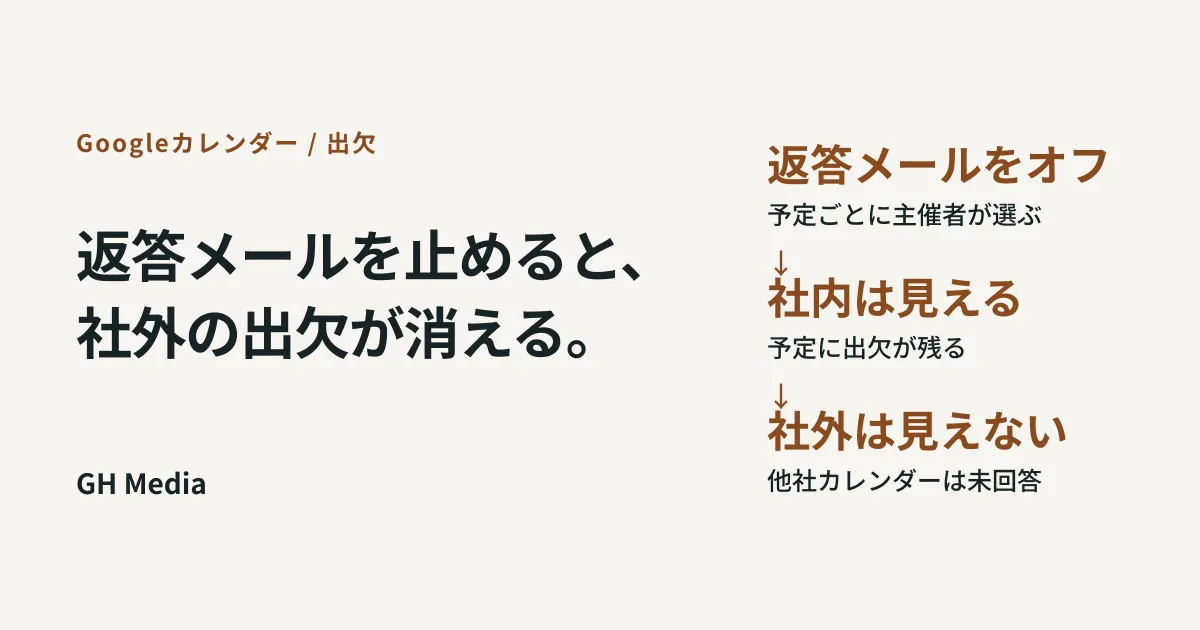
Google Calendar has added a checkbox that lets you choose, per event, whether to receive guest responses by email. Staged rollout began on 28 August 2026, and domains on the scheduled release track received it from 10 September onward. It is available on every Google Workspace edition as well as on personal accounts.
However, the behavior when you uncheck this box changes depending on the calendar the guest is using. Turning it off on an event that invites people outside your company can break RSVP management itself.
What disappears when you turn it off
By default the box is checked and response emails arrive as before. Here is the behavior when you uncheck it, broken down by the guest's environment.
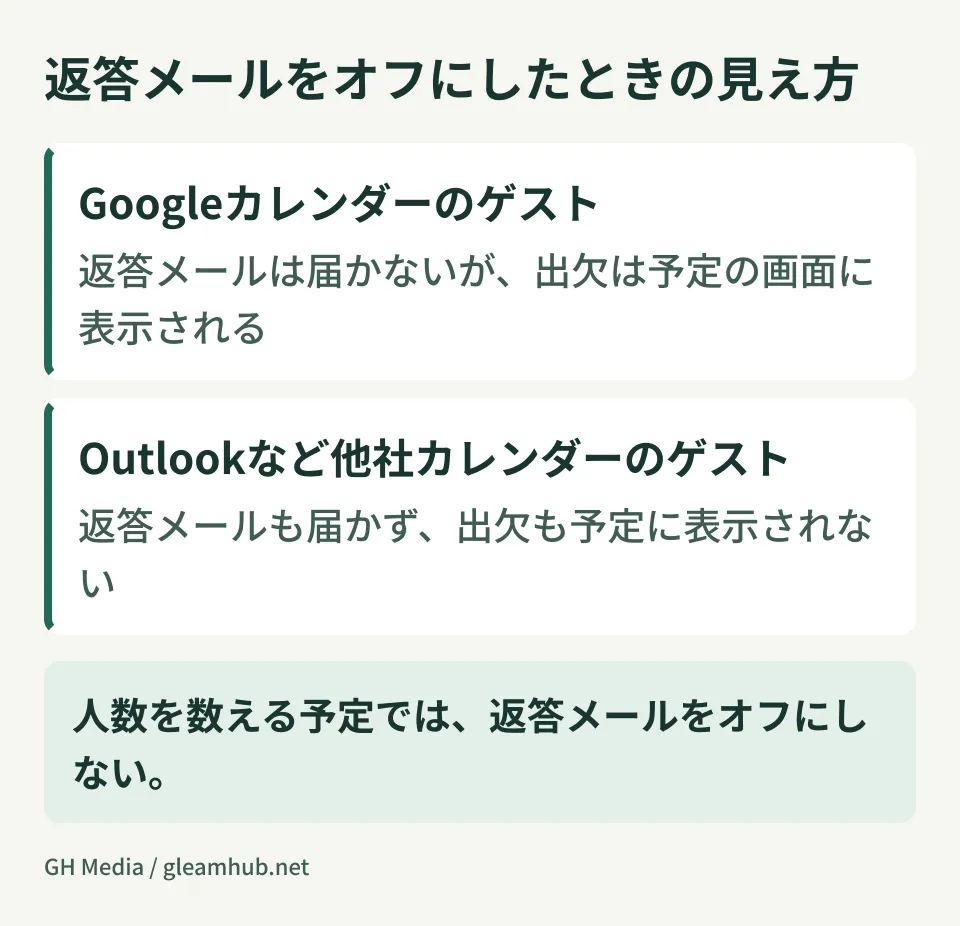
| What the guest is using | Response email | RSVP status on the event |
|---|---|---|
| Google Calendar | Does not arrive | Shown as before |
| Third-party calendars such as Outlook | Does not arrive | Not shown |
The top row is as expected. There is simply less email, and you can see the RSVPs by opening the event.
The problem is the bottom row. The RSVPs of guests using third-party calendars only ever reached the organizer through the email route in the first place. Stop that email and the means of learning their RSVP disappears entirely. Open the event screen and those guests remain lined up as "No response."
Why this matters at Japanese companies
For internal meetings alone, this difference is almost never a problem, because everyone is on the same Google Workspace.
Where it bites is events that include people outside the company: clients, hiring candidates, seminar registrants, professional advisers and outside contractors. The reality in Japan is that these people are often on Outlook calendars. The events where you most want to stop response emails are precisely the ones with many attendees, and the more attendees there are, the more external people are mixed in. The motive for turning it off and the condition under which you must not overlap in the same place.
Here is what actually happens. You send an information session invitation to forty people. The response emails are noisy, so you turn them off. You open the calendar the day before, and the only people marked as attending are your own employees. Every external participant shows as "No response." You have no idea how many copies of the handout to print.
It is not that RSVPs are not being collected; it is that they are being collected but are not visible. This is the worst kind of failure, because you do not notice until the day itself.
The guest cannot see this difference
What makes this tricky is that the guest cannot see this setting. Someone who receives the invitation in Outlook presses "Accept" exactly as always. They have no way of knowing that their response never reached the organizer.
Then this kind of mix-up happens. The organizer sends a confirmation email the day before asking "will you be able to attend?" The recipient, who has already accepted, takes it as being chased. When the other party is a client or a hiring candidate, this is not a small matter. All that is left is the impression that your administration is sloppy.
With someone inside the company you can explain "it was a calendar setting" and be done, but you cannot give that explanation to someone outside it. From the standpoint of not making the other party bear the side effects of your settings, it is safer not to touch this on events that include external guests.
How to divide this in practice
Dividing by the nature of the event is the practical approach.
- Internal-only recurring meetings and all-hands — fine to turn off. Every attendee is on the Google side, so you can see RSVPs on the event screen
- Events with even one external guest — leave it on. Events where you need to count heads (information sessions, training, meals) must always have it on
- Broadcast announcements that do not need RSVPs — consider not using an invitation at all, making attendance optional, or using a setting that does not ask guests to respond
The dividing line is not "is this external" but "will you use the RSVP count." If the venue or the number of handouts depends on RSVPs, you must not close off one of the routes.
For events where you need RSVP counts, use something other than the calendar
A calendar invitation is a weak tool for tallying RSVPs to begin with. It depends on interoperability with third-party calendars, and the handling of forwarded invitations varies by environment. The gaps that arise between Google Calendar and Outlook show up in the same shape around meeting join links as well (handling the join button when using third-party video conferencing tools).
For events where you need to finalize numbers, it is safer to shift to one of the following.
- Take applications through a form. Accept them with Google Forms and send calendar invitations only to confirmed attendees. The calendar stays purely a notification channel, and the count lives on the form side
- Use appointment schedules. For booking slots for individual interviews or meetings, Google Calendar appointment schedules are less dependent on the other party's calendar environment
A calendar invitation is strong at placing an event on someone else's calendar and poorly suited to counting heads. Keeping that division in mind reduces the number of times you have to agonize over which way to set this.
What administrators should decide up front
This setting is chosen per event by the organizer; it is not something an administrator fixes uniformly. That is exactly why it is worth issuing guidance on how to use it in advance.
Add this one line to your internal calendar operating rules: "Do not turn off response emails on events that include external guests." Write down the reason as well, and it will survive a change of the person in charge.
It also helps to share blocking a user in Google Calendar applies across the whole account as another example where a calendar setting reaches further than expected, so that the sense that "calendar settings apply more broadly than you think" is shared.
What to do next
Open one recent event where you invited people from outside and look at the RSVP column. If only the external people are lined up as "No response," response emails may be turned off. It does not necessarily mean they have not replied.
Then check the external meetings you have scheduled over the next two weeks and see whether the response email setting is on. If any of them requires counting heads, now is the time.
At GleamHub, we offer free IT and Google Workspace consultations on establishing Google Calendar operating rules and taking stock of settings, including how they affect exchanges with people outside your company. Because the order of work depends on how you operate today, please get in touch via Contact.
Sources
- Suppress email responses to calendar invitations and updates — Google Workspace Updates
- Google Workspace Weekly Recap - September 11, 2026 — Google Workspace Updates
- Check responses to an event — Google Calendar Help
- Google Calendar adds a per-event setting to turn off guest response emails and auto-replies — HelenTech
- Differences between Outlook Calendar and Google Calendar — Google Workspace Learning Center