Chat apps for third-party services can be installed by an admin on behalf of the organization or by users themselves. When you stop using one, which action stops what is less obvious than it is when you install it.
The Admin Help Center states plainly that revoking data access does not stop a Chat app from being invoked. Using the Confluence integration released on September 22 as an example, we lay out the layers of permission and how to stop an app.
Confluence arrives as a Chat app
On September 22, 2026, Google announced an integration that lets you use Confluence in Google Chat (Confluence for Google Chat). When you paste a Confluence link into Chat, a preview shows the page title, summary and author name, and Chat notifies you of @mentions, replies to your comments, changes to pages you own, and updates to shared pages. The idea is to keep Confluence as the system of record while conversations happen in Chat.
It is already available on both Rapid Release and Scheduled Release domains, and it covers all Google Workspace customers as well as Workspace Individual subscribers and personal Google accounts. A Confluence Cloud account is required. Admins can install it on users' behalf, and users can also find it by searching for apps in Chat (whether they can install it themselves depends on the organization's settings).
The integration is provided as part of the Atlassian add-on (a Marketplace app that connects Jira and Confluence to Gmail, Docs and other apps). The Admin Help Center article on allowing users to install Chat apps explains that when a developer adds Chat support to an existing Marketplace app, users who have already installed that app can use it in Chat as well, and may start receiving direct messages from the app. Organizations that already have the Atlassian add-on installed should also check how it is handled on the Chat side.
Also in September, Google announced integrations that let Gemini in Workspace work with Asana, HubSpot, Salesforce and other services. We covered those in Gemini third-party connectors enabled by default. The entry points differ — Gemini versus Chat — but both add paths through which outside services come into contact with internal conversations and documents.
Permissions are split into three layers
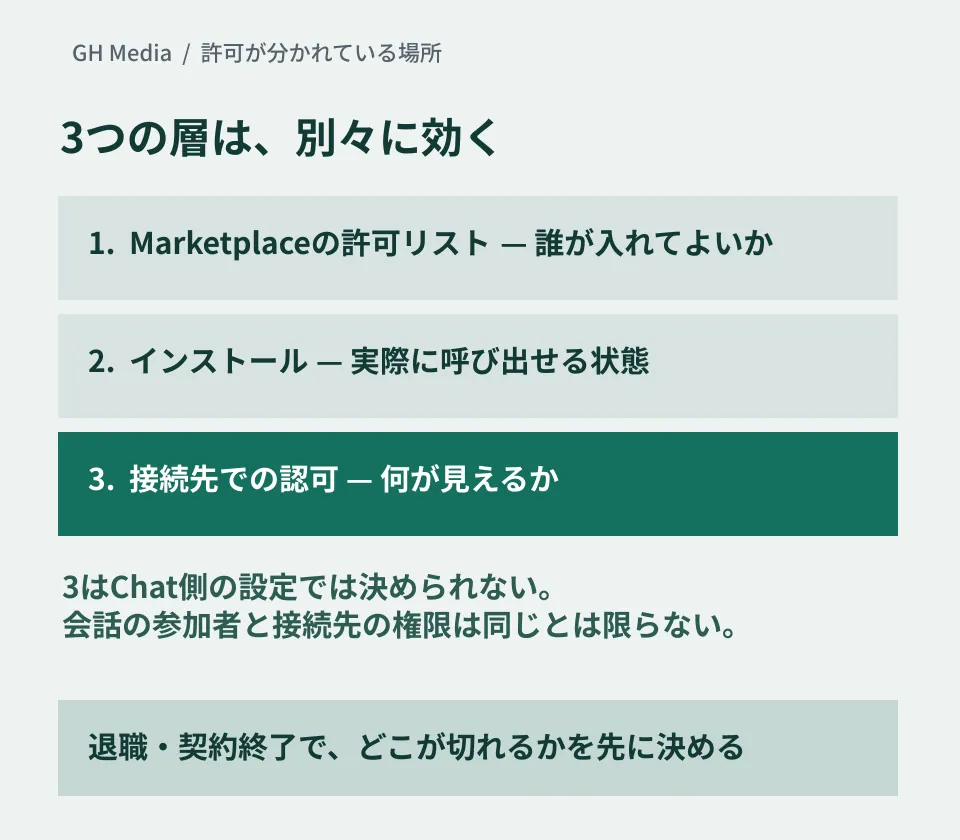
When third-party apps are used in Chat, what admins decide falls into at least three layers. If these are mixed up in discussion, you can end up both with "we allowed it, but it doesn't work" and with "we thought we stopped it, but it's still running."
| Layer | Decision Item | How it takes effect, per the official help |
|---|---|---|
| Marketplace allowlist | Which apps to allow, for the whole organization or for specific organizational units or groups | Applies to users whose install setting allows allowlisted apps only. Has no effect on users allowed to install any app |
| Installation | Whether admins install apps per organizational unit or group, or users install them individually | Users can turn off notifications for Chat apps installed by an admin, but cannot uninstall them |
| Authorization in the connected service | Who can see what, based on Confluence accounts | Outside Chat's settings. Using the integration requires a Confluence Cloud account |
The condition in the first row is easy to miss. The user install setting is chosen from three options — any app, allowlisted apps only, or no apps — for each organizational unit or group. Even if you think you are restricting apps with the allowlist, the allowlist has no effect while the install setting remains at any app.
The third row takes effect separately from permissions on the Chat side. Neither the announcement nor the Marketplace listing says whose Confluence permissions are used to build a link preview, or which conversation participants can see it. The participants in a Chat conversation are not necessarily the same people who have permissions in Confluence, so keep this as an item to verify before rollout.
"Revoke access" does not stop Chat apps from being invoked
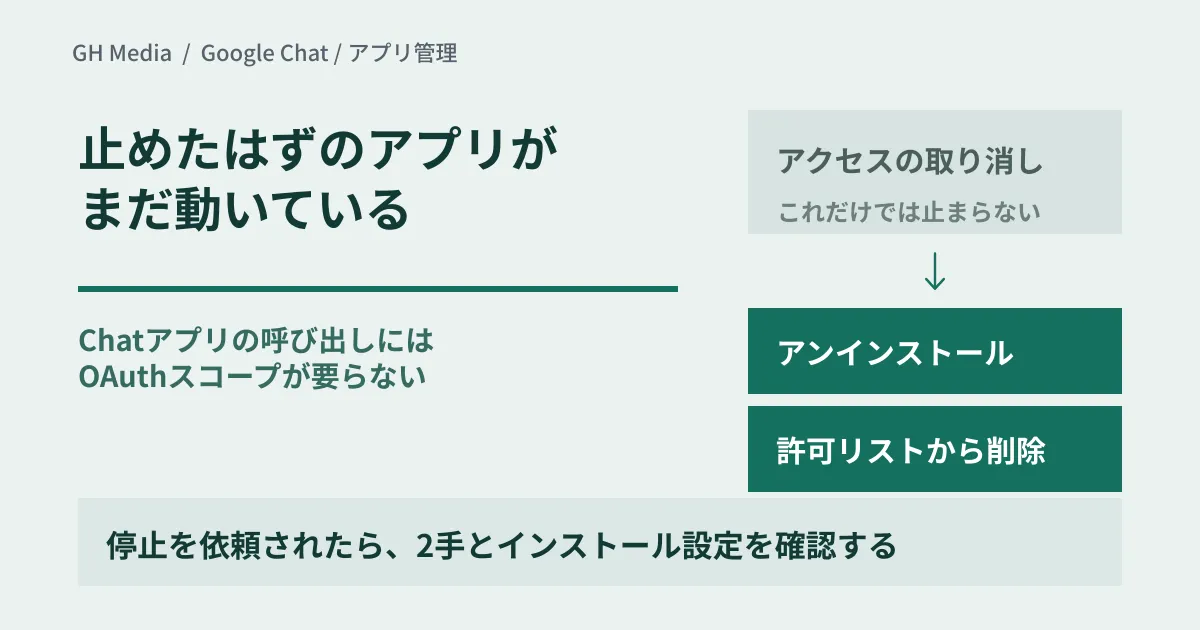
Marketplace apps installed by an admin have an action for revoking data access. Revocation applies to all access rather than to individual scopes, and users are asked to authorize the app's permissions again the next time they use it. Revoking is not an action that stops the app; it is an action that makes users re-authorize it.
Moreover, for add-ons that work in Chat, the help article explains that because invoking Chat apps doesn't require OAuth scopes, revoking access does not block access to the Chat app. When a user invokes a Chat app, that user's identity and profile information are shared with the developer. In other words, even after someone reports that "the permissions have been cut off," users can still invoke the app from Chat.
The help article gives two ways to block it: uninstall the app, and remove it from the allowlist so users cannot install it. When you are asked to stop an app, check that these two steps have been done, rather than relying on revocation.
What the two steps stop, and what they don't
Set side by side with revocation, each of the two steps also has its own scope and conditions.
| Operation | What it stops | What it doesn't stop / conditions |
|---|---|---|
| Revoking data access | Permissions already granted (users are asked to re-authorize the next time they use the app) | Invoking the Chat app |
| Uninstalling | Apps installed by an admin. Can be removed for everyone, or per organizational unit or group | Apps users installed individually. Users allowed to install the app themselves can use it again |
| Removing from the allowlist | Even users who have it installed lose access. The Chat app can no longer be used in Chat | Has no effect on users allowed to install any app |
Only apps installed by an admin can be uninstalled. The help article explains that changes can take up to 24 hours to take effect, and that the developer will delete your data according to its own data retention policy.
In organizations whose settings leave the allowlist without effect, restrict the user install setting itself. If you change it to a more restrictive setting, users may lose access to apps they installed previously.
If you want to stop only apps in Chat, you can also turn off the Chat admin setting "Allow users to install Chat apps." Service-specific settings such as this one for Chat override the Marketplace install setting. However, turning it off disables all Chat apps, including those used personally. Because it has a large impact, use it only together with a decision to stop apps across the board.
One more point: the help article says that even when you restrict apps with the allowlist, Chat apps for development use can still be installed for up to 5 users. To stop these as well, you need to restrict app installation itself.
Four things to decide before installing
These are the items to put in writing first when you consider a new Chat app.
- How widely to open it. Both the allowlist and admin installation can be set per organizational unit or group. If you start with only the departments that will use the app, it is easier to see who is affected when you widen access or roll it back.
- What the app can do. The permissions an app requests appear in its Marketplace listing and on the screen shown at installation. For Chat, the Atlassian add-on requests permissions such as viewing, composing, sending, updating and deleting messages, and viewing, adding and removing members of conversations and spaces. According to the Google Chat Help, a Chat app added to a space can post messages and can read the messages that invoke it, membership information and space details. It can change space details and manage members if an admin has given consent.
- Who can see what in the connected service. This is a matter of permission design in the connected service, not in Chat. Together with the connected service's admin, check in a test space whether page names or summaries shown in previews could be seen by participants who lack permission.
- Who owns the procedure for stopping the app and for people leaving. Decide who will carry out the two steps above and the settings check when a contract ends, the person in charge changes, or an incident occurs. The Marketplace listing says users can connect and disconnect Confluence with Chat commands. What happens to that connection when someone leaves the company or changes roles is something to confirm in advance.
In conversations that include people from outside the company, also check what the app can see. According to the help article, an app can see the email address, avatar, basic user information, locale, time zone and interaction information of anyone who interacts with it in Chat. It can also see basic information about other people in the same conversation, but not their email address or avatar unless they interact with the app themselves. We cover designing spaces that include business partners in Hiding Google Chat member lists.
An inventory you can do this week
First, check what the user install setting is for each organizational unit. If any app is allowed, the allowlist has no effect.
Next, in the Marketplace apps list in the Admin console, write down the apps installed by admins and the apps on the allowlist. For each app, add one line each for "who decided to adopt it," "which departments use it" and "who is responsible for stopping it." Any line you cannot fill in is what the inventory needs to address.
At this point, mark the apps that work in Chat. Because revoking data access does not stop them from being invoked, you need to write down a separate procedure for stopping them.
Once the list is filled in, the next step is permissions on the connected-service side. Settings on the Chat side cannot change permissions inside the connected service.
On September 28, 2026, we opened and checked directly the Google Workspace Updates announcement (dated September 22, 2026, Confluence for Google Chat); the Admin Help Center articles on data access, the allowlist, uninstalling, install settings and admin installation for Marketplace apps, and on allowing users to install Chat apps (English versions, all updated September 24, 2026); the Google Chat Help article on Chat app permissions; and the Marketplace listing for the Atlassian add-on. We have not verified operations in the Admin console or the actual behavior after revoking access, uninstalling, or removing an app from the allowlist. Whose permissions are used to build Confluence link previews, and who can see them, is not described in the official materials, and we could not confirm it. Because the Japanese-language Help Center is machine-translated by AI, we have not quoted the Japanese labels used in the admin screens. This article organizes the layers of permission and the procedure for stopping apps.
For designing the scope of Chat and third-party SaaS integrations, or taking inventory of permissions, please consult GleamHub.
Sources
- Introducing the new Confluence integration with Google Chat — Google Workspace Updates
- Manage data access for admin-installed Marketplace apps — Google Workspace Help
- Manage the Marketplace app allowlist for your organization — Google Workspace Help
- Uninstall a Marketplace app for your organization — Google Workspace Help
- Set whether users can install Marketplace apps — Google Workspace Help
- Install Marketplace apps for your organization — Google Workspace Help
- Allow users to install Chat apps — Google Workspace Help
- Learn about Google Chat app permissions — Google Chat Help
- Atlassian — Google Workspace Marketplace