You ingest JSON from external systems and web forms into BigQuery every day. If even one broken row slips in, the whole query fails and the morning aggregation stops. But if you silently discard broken rows, you cannot tell later what is missing.
On October 19, 2026, Google Cloud introduced on its official blog a feature that lets you send structured logs to Cloud Logging from inside BigQuery Python UDFs (user-defined functions) using Python's standard logging. It says no external plugins or custom connectors are needed. According to the BigQuery release notes, Python UDFs were announced as generally available (GA) on May 20, 2026, and the ability to view logs in Cloud Logging on August 26. This article covers the flow the blog presents, which is to "remove broken rows without stopping, notify, then investigate and restore," and the points you will want to fix before using the example in production as is.
The blog's example: three stages
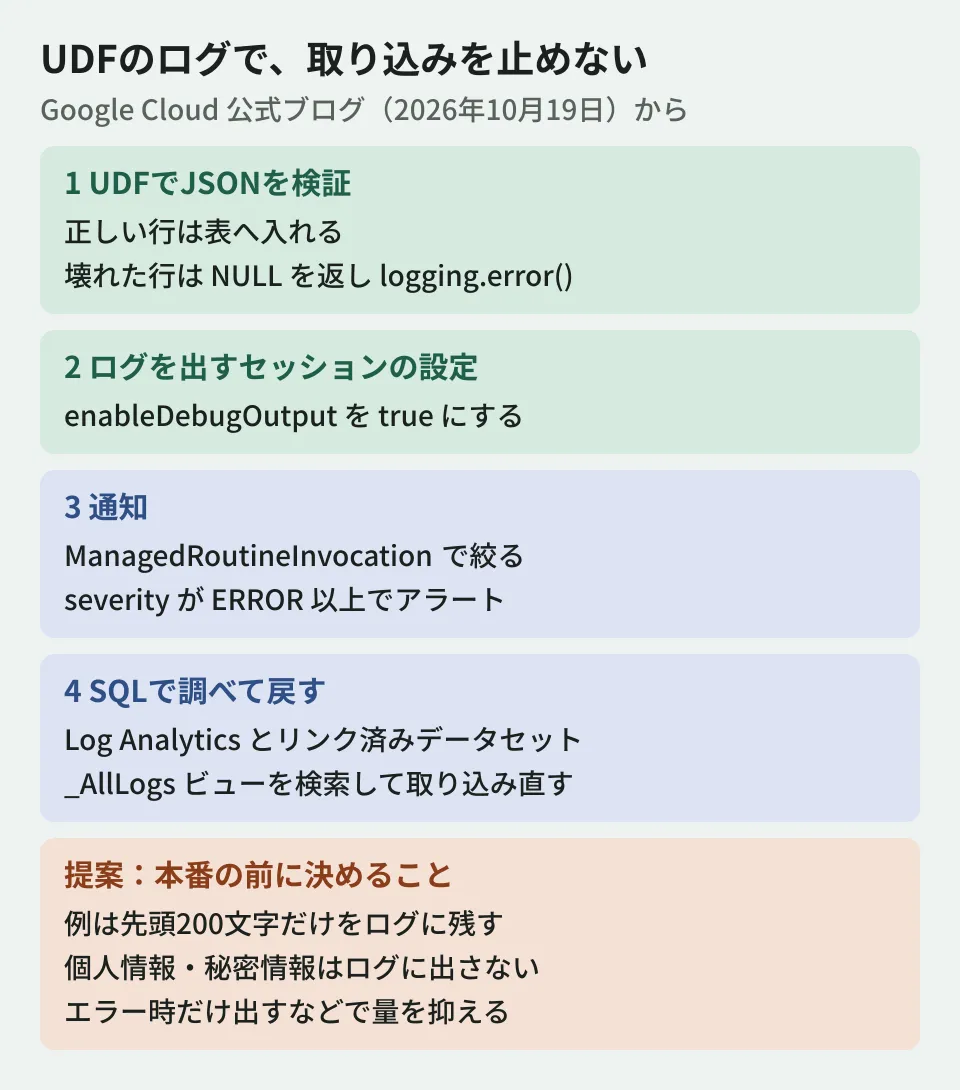
Using the example of ingesting events for user actions (click, view, checkout) on an e-commerce site, the blog shows the following three stages.
- Validate during ingestion: A Python UDF parses the JSON. Valid rows go to the destination table, while broken rows and rows missing required fields are logged with
logging.error(), and the UDF returns NULL to prevent the query from failing - Notify immediately: Use Cloud Monitoring log-based metrics and alerts to notify the person in charge when the number of errors exceeds a threshold
- Investigate and restore with SQL: Search the
_AllLogsview of the dataset linked to the Cloud Logging bucket with BigQuery SQL, investigate the cause, and re-ingest the corrected data
Key points of the procedure
Logging inside the UDF
The blog's UDF safe_parse_json outputs logging.warning() if the received string is empty, MISSING_REQUIRED_KEY if a required field is missing, and JSON_SYNTAX_ERROR if it cannot be read as JSON, each as a JSON string with logging.error(), and returns NULL. The runtime is python-3.11.
CREATE OR REPLACE FUNCTION `YOUR_PROJECT.YOUR_DATASET.safe_parse_json`(
    raw_payload STRING,
    required_key STRING
)
RETURNS STRING
LANGUAGE python
OPTIONS (entry_point='safe_parse_json', runtime_version='python-3.11')
AS r'''
import json
import logging

def safe_parse_json(raw_payload, required_key):
    if not raw_payload or raw_payload.strip() == "":
        logging.warning(json.dumps({"error_type": "EMPTY_PAYLOAD"}))
        return None
    try:
        data = json.loads(raw_payload)
        if required_key and (required_key not in data or data[required_key] is None):
            logging.error(json.dumps({
                "error_type": "MISSING_REQUIRED_KEY",
                "missing_key": required_key,
                "raw_payload": raw_payload[:200]
            }))
            return None
        return json.dumps(data)
    except Exception as e:
        logging.error(json.dumps({
            "error_type": "JSON_SYNTAX_ERROR",
            "error_message": str(e),
            "raw_payload": raw_payload[:200]
        }))
        return None
''';
Enable log output in the session
Logs are recorded when the following setting is made in the session that runs the ingestion query. The blog's best practices also say to "include it in the sessions where you want logs kept."
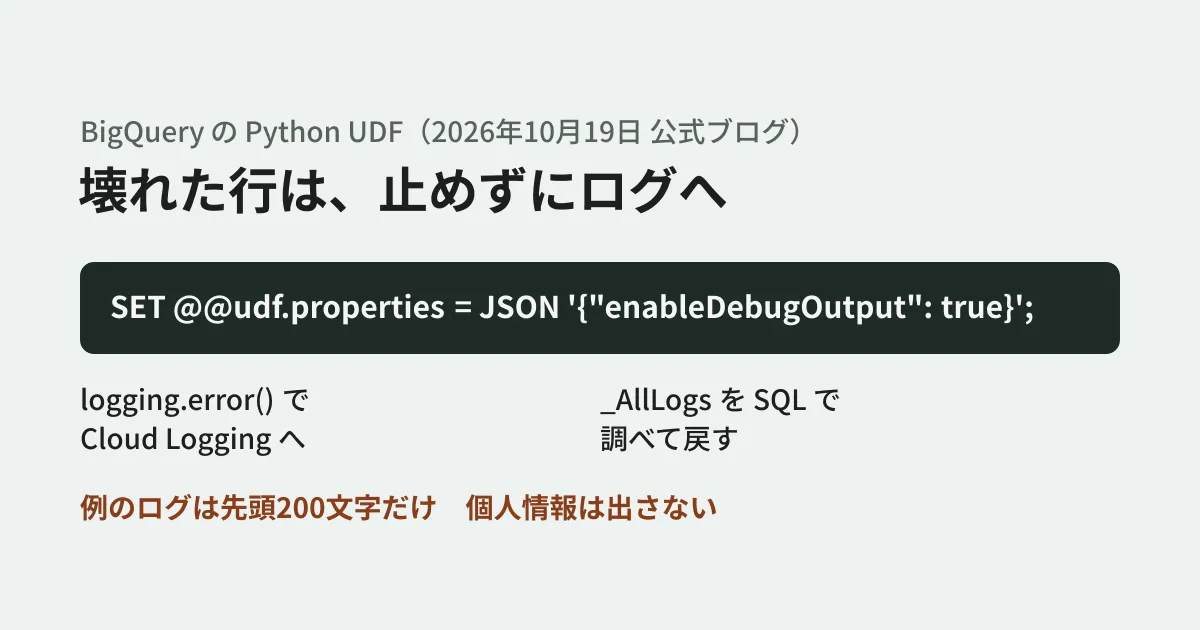
SET @@udf.properties = JSON '{"enableDebugOutput": true}';According to the documentation, Python UDF logging is off by default to prevent unintended data exfiltration. Logs are output with logging.info, logging.error, and the like. print() is not supported.
In the blog's example, two of the four rows, the broken JSON row and the row without user_id, are sent to Cloud Logging, and the query keeps running, with the remaining two rows going into the clean_events table.
Notification and search conditions
For alerts, paste the following condition into Logs Explorer, then set the notification destination (Slack, PagerDuty, email, and so on) from "Create alert."
resource.type="bigquery.googleapis.com/ManagedRoutineInvocation"
severity>=ERROR
The log-based alert created in this procedure notifies you of logs that match the condition. According to the documentation, log-based alerts cannot produce counts, and counts require log-based metrics. If you want it to work as "when the number of errors exceeds a threshold," create a log-based metric and set an alert on that metric.
To search with SQL, you need to enable BigQuery Log Analytics on the Cloud Logging bucket and create a linked dataset. The blog's example filters the _AllLogs view with log_name LIKE '%managed_routine_output%' and extracts error_type, missing_key, and raw_payload from json_payload.
What to fix before using the example as is
The blog's example is a minimal form meant to show the feature. As the editorial team, we propose deciding the following points before using it for production ingestion.
Match the length you log to how you restore. The blog explains that "the original data remains in Cloud Logging, so it can be restored with SQL," but the example UDF logs only the first 200 characters with raw_payload[:200]. Rows longer than 200 characters cannot be restored from the logs. The log bucket's retention period is also 30 days unless changed. If you plan to restore, also consider keeping the original data in a separate table or Cloud Storage and logging only an ID that identifies the row and the error type.
Do not log personal information. The blog's best practices ask you not to log credentials or secrets, because Cloud Logging is visible to users with the Logging Viewer permission. For web form and member data, treat email addresses and names the same way, and decide which fields to log. The documentation also warns that anyone with permission to view logs can see the recorded content even without permissions on the underlying BigQuery data. Queries against a linked dataset are governed by BigQuery permissions and cannot be restricted to specific views only. Check both who can view logs and the permissions on the linked dataset.
Estimate log volume and cost. The blog says that high-volume pipelines should keep log ingestion down by, for example, logging only on errors or sampling. Cloud Logging ingestion costs $0.50 per 1GiB, and up to 50GiB per project each month is free (pricing page as of November 6, 2026). Python UDFs also incur container build and invocation costs, and query results are not cached. Also plan for the volume if broken rows suddenly increase.
Separate the statements in the restore SQL. In the blog's restore example, there is no semicolon between INSERT and the verification SELECT. Also, the approach of choosing a substitute value by putting default_user in user_id changes the meaning of the aggregates. Decide the values to use when restoring with the person in charge of the ingestion source.
The blog also lists other uses: migration checks that run old and new calculations side by side and log only the differences, masking audit events, and warnings about unexpected input in model inference.
For setting limits when using generative AI functions in BigQuery, see the article on BigQuery AI function token limits. For working with Cloud Storage files, see the article on BigQuery ObjectRef.
Scope of verification
On November 3 and 6, 2026, we directly retrieved the Google Cloud official blog post "How to Use Python UDF Logging for Pipeline Observability" (published October 19, 2026 according to the feed data; the page displays October 20) and checked the procedures, settings, SQL, and best practices against the original (document research). The code reproduces the blog's example with only blank lines removed and no change in meaning. On November 6, we also checked the BigQuery release notes, the Python UDF documentation, and the Cloud Logging documentation and pricing page. The blog's
log_name LIKE '%managed_routine_output%'condition has not been confirmed in the documentation. We have not tested execution in BigQuery.
For building data ingestion and aggregation systems, please contact us through consultation on development, AI, and automation.
References
- How to Use Python UDF Logging for Pipeline Observability(Google Cloud Blog、2026-10-19)
- Work with user-defined functions in Python(BigQuery)
- BigQuery release notes
- Create a linked BigQuery dataset on a log bucket(Cloud Logging)
- Configure log buckets(Cloud Logging)
- Configure log-based alerting policies(Cloud Logging)
- Google Cloud Observability pricing