PDF conversion, page translation, AI summaries. Some of the Chrome extensions employees install for work have permissions to read and change the content of the pages they have open. Before switching extensions to an allowlist in the Admin console, you first want to know "what is installed right now, on how many devices, and which ones to check first." That is the starting point for an inventory.
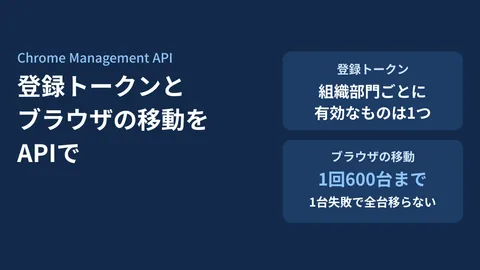
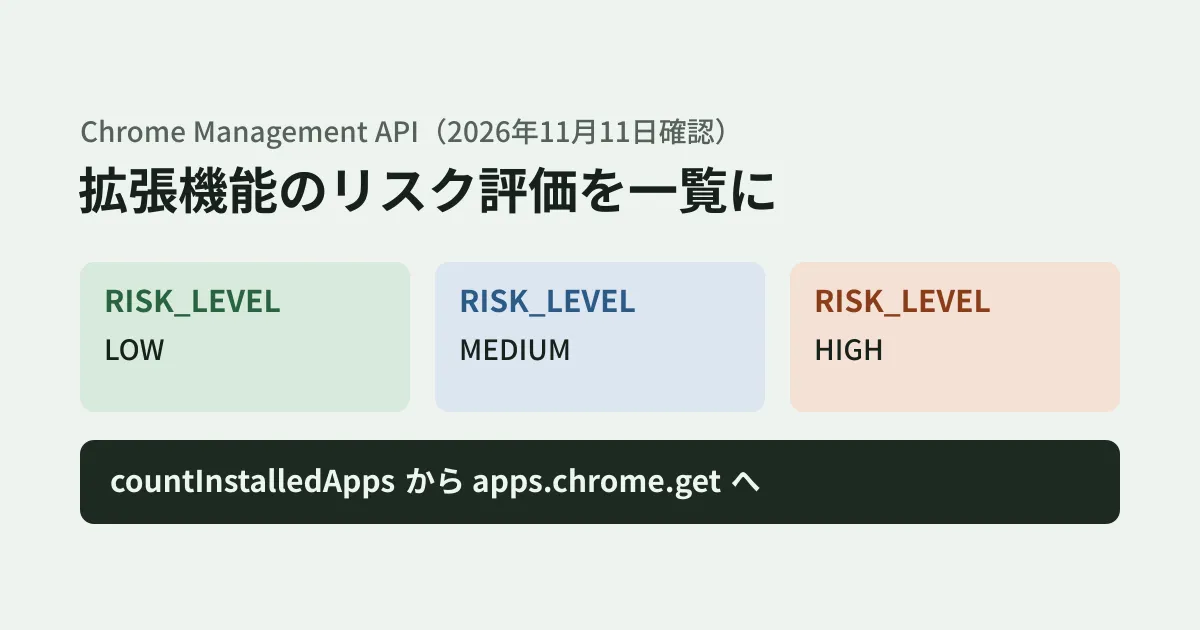
Google's Chrome Management API includes a report that aggregates the extensions installed in your organization's browsers, and it also returns risk levels (low, medium, high) from external assessment companies. In addition, an update in early November 2026 added the same risk assessment fields to the response of the method that returns details for a single extension. This appears on the relevant API reference page (updated November 3, 2026), and the same fields are also in the API definition (Discovery document, revision 20261101) and in the Go client library generated automatically from that definition (commit on November 4).
In this article, based on the original text of the API reference and admin help, we show which methods return what and suggest how to run an inventory. This is documentation research based on official materials checked on November 11, 2026; we did not actually call the API or check the Admin console.
Three methods to use
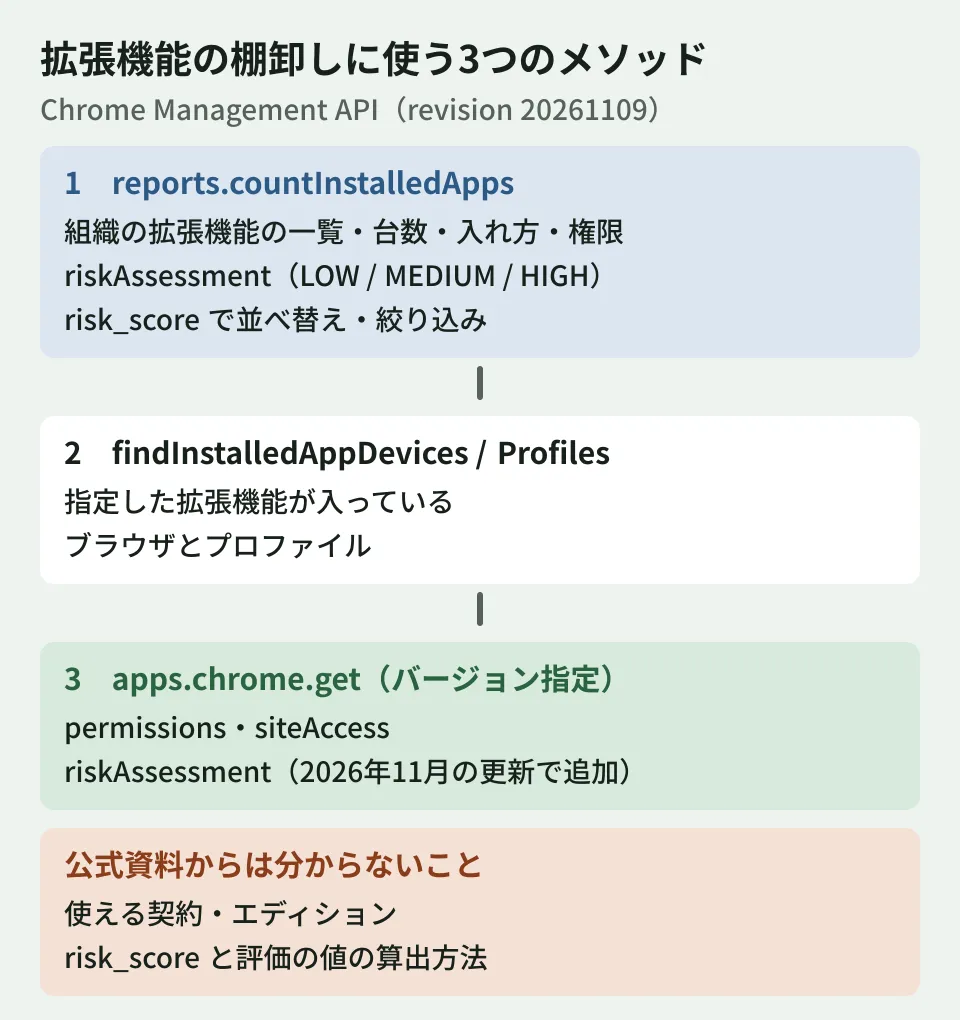
The following three methods can be used for an inventory. Used in order, they let you trace from "the overall list" to "where it is installed" to "what the extension asks for."
| Method | Returns | Required scope |
|---|---|---|
reports.countInstalledApps | List of apps and extensions installed in the organization (or an organizational unit), with counts and risk assessments | chrome.management.reports.readonly |
reports.findInstalledAppDevices / findInstalledAppProfiles | Managed browsers / profiles where the specified extension is installed | chrome.management.reports.readonly |
apps.chrome.get | Chrome Web Store information (permissions, accessed sites, risk assessment, etc.) | chrome.management.appdetails.readonly |
Each row in the countInstalledApps results lists the extension's ID, name, type (appType), install type (appInstallType; normal install, admin-deployed, developer mode, sideloaded, etc.), number of browsers it is installed on (browserDeviceCount), number of profiles (profileCount), and permissions (permissions). Each page returns at most 100 items, and totalSize returns the total count.
In the Admin console, the same kind of aggregation appears in the apps and extensions usage report (labeled "Devices > Chrome > Reports > Apps & extensions usage" in the English help), which also has a Risk assessment column. According to the help, this report requires Chrome browser Cloud reporting to be enabled, and it can take up to 24 hours for data to appear.
Fields returned in the risk assessment
According to the reference, the risk assessment (riskAssessment) contains the following.
overallRiskLevel: The overall level. It is one ofRISK_LEVEL_LOW,RISK_LEVEL_MEDIUMorRISK_LEVEL_HIGH, and the reference describes it as "the highest level among all assessments."entries: The assessment from each assessment company. It contains the assessment company (provider), that company's level (riskLevel), and the assessment details (riskAssessment).- The assessment details include the assessment value (
assessment), a URL with a detailed explanation (detailsUrl), and the version of the extension that was assessed (version).
Two assessment company values are currently active: LayerX Security and Spin.AI (V2). CRXcavator and the older Spin.AI are marked "deprecated" in the reference (according to the Go client library history, Spin.AI V2 was added in January 2026, and the deprecation of the older version came with a definition update in July of the same year).
Note that, for the assessment value (assessment), the reference says it "is currently numeric, and its interpretation differs by assessment company." The admin help lists guideline ranges for each level by assessment company.
| Assessment company | Low (LOW) | Medium (MEDIUM) | High (HIGH) |
|---|---|---|---|
| LayerX | 0〜3.9 | 4〜6.9 | 7〜10 |
| Spin.AI | 1〜34 | 35〜64 | 65〜100 |
The help also notes that extensions scored 3.1 to 3.9 by LayerX may temporarily appear as "Medium" in the Admin console. According to the Chrome release notes, starting with Chrome 146 the Spin.AI score in the Admin console changed so that 0 represents low risk and 100 represents high risk. Because the scale differs by assessment company and can also change over time, avoid comparing numbers across assessment companies or making mechanical decisions based on the numbers alone. A practical approach is to use the level (LOW/MEDIUM/HIGH) as an entry point and have a person check the detailed explanation URL.
On coverage, the help says assessments apply to "extensions publicly available in the Chrome Web Store" and that "assessment companies try to assess most versions, but an assessment may not be available." It also states explicitly that Google does not guarantee or modify the content of the assessment companies' data.
What changed in November is the individual details
The risk assessment in countInstalledApps rows and the sort and filter field risk_score were already present in the oldest definition we could check, from January 2025. What the early November 2026 update added is riskAssessment on the apps.chrome.get side (details for a single extension).
This means that for an extension that caught your attention in the list, you can now check the risk assessment in the same response as its permissions (permissions) and the range of sites it accesses (siteAccess). apps.chrome.get can be called with a specific version in the form customers/my_customer/apps/chrome/<拡張機能のID>@<バージョン>.
How to run the inventory (our suggestions)
From here on are the editorial team's suggestions.
1. Get the list and look first at high-level items and those installed on many devices. Fetch everything with countInstalledApps, and sort the items whose overallRiskLevel is HIGH or MEDIUM by number of installs, in descending order. Keep extensions without an assessment ("If available" in the reference) in a separate column.
2. Look at how they were installed. The help explains DEVELOPMENT as "an unpacked extension loaded in developer mode" and SIDELOAD as "installed by other software on the device." Because these may include extensions that have not passed Web Store review or have no assessment, add them to your review list separately from the risk assessment level.
3. For anything that concerns you, check where it is installed and what it asks for. Identify the devices and profiles with findInstalledAppDevices / findInstalledAppProfiles, and check permissions, accessed sites and risk assessment with apps.chrome.get.
4. Have people make the decision, and set the policy in the Admin console. After checking with users whether an extension is needed for work and whether there are alternatives, decide on allow and block policies. We covered settings that bring extensions under management at no extra cost in our Chrome Enterprise Core article.
The Chrome release notes also describe a feature that automatically blocks extensions whose scores from assessment companies (Spin.AI and LayerX) exceed a threshold, configured in the Admin console. However, the Chrome 147 notes say "gradual rollout in 148" while the Chrome 148 notes say "gradual rollout in 149," so the timing is described differently, and we could not confirm when it becomes available to all organizations. Even if you use automatic blocking, it is safer to first look at levels and install counts in the list and check whether the extensions that the threshold would stop are needed for work.
Example: exporting the list to a spreadsheet with Apps Script
This is an Apps Script example that writes the list from step 1 to a Google Sheets spreadsheet. We wrote this example based on the reference and have not run it in a real environment. Because the reference does not describe how to specify sort direction or filter values, the script fetches everything and then sorts on the script side.
// appsscript.json の oauthScopes に次を加える(例)
// "https://www.googleapis.com/auth/chrome.management.reports.readonly",
// "https://www.googleapis.com/auth/spreadsheets.currentonly",
// "https://www.googleapis.com/auth/script.external_request"
function listExtensionsByRisk() {
  const url = 'https://chromemanagement.googleapis.com/v1/customers/my_customer/reports:countInstalledApps';
  const headers = { Authorization: 'Bearer ' + ScriptApp.getOAuthToken() };
  const order = { RISK_LEVEL_HIGH: 0, RISK_LEVEL_MEDIUM: 1, RISK_LEVEL_LOW: 2 };
  const rows = [];
  let pageToken = '';
  do {
    const q = 'pageSize=100' + (pageToken ? '&pageToken=' + encodeURIComponent(pageToken) : '');
    const res = JSON.parse(UrlFetchApp.fetch(url + '?' + q, { headers }).getContentText());
    for (const app of res.installedApps || []) {
      if (app.appType !== 'EXTENSION') continue;
      const risk = app.riskAssessment || {};
      rows.push([
        app.displayName, app.appId, app.appInstallType,
        app.browserDeviceCount || 0, app.profileCount || 0,
        risk.overallRiskLevel || '(評価なし)',
        (risk.entries || []).map(e => e.provider + ':' + (e.riskLevel || '')).join(' / '),
        (app.permissions || []).join(', '),
      ]);
    }
    pageToken = res.nextPageToken || '';
  } while (pageToken);
  rows.sort((a, b) => ((order[a[5]] ?? 3) - (order[b[5]] ?? 3)) || (b[3] - a[3]));
  const sheet = SpreadsheetApp.getActiveSheet();
  sheet.clearContents();
  sheet.appendRow(['名前', 'ID', '入れ方', 'ブラウザ台数', 'プロファイル数', '全体の段階', '評価会社ごと', '権限']);
  if (rows.length) sheet.getRange(2, 1, rows.length, rows[0].length).setValues(rows);
}
To split results by organizational unit, add orgUnitId. According to the developer guide, countInstalledApps, findInstalledAppDevices and findInstalledAppProfiles require the admin privilege "Services -> Chrome Management -> View Extensions List Report" (or the privilege with the same name under the ChromeOS settings).
What the official documentation does not tell you
Some points cannot be determined from the official materials we checked. Please verify them in your own Admin console before rolling this out.
- Eligibility: Which plans and editions can use this report and the risk assessment. The help's reporting page guides you to enroll in Chrome Enterprise Core, but it does not describe support by edition.
- Sort value: Which assessment company's value
risk_scoreis based on. - How assessments are calculated: How each assessment company's value (
assessment) is calculated. The help only gives guideline ranges for the levels. - Differences between the API and the console: Whether the API response and the Admin console display values from the same point in time (for the console, the help says it shows "the latest score from each assessment company").
Even if an assessment company rates an extension LOW, it is worth checking if it has permission to read pages that handle business data. We think a good division of roles is to use the risk assessment to decide "which to look at first," and to base the final decision on permissions, the range of sites accessed, and checks with users.
Scope of verification
On November 11, 2026, we reviewed the Chrome Management API reference (
countInstalledApps,apps.chrome.getand theAppDetailsresponse; the latter updated November 3, 2026), the developer guide (admin privileges for the Reports API), the Discovery document (revision 20261109), the definition history in googleapis/google-api-go-client (1179cf8 on November 4 addedriskAssessmentto theapps.chrome.getresponse, 1315da9e in January added Spin.AI V2, and 5116a489 in July deprecated the older Spin.AI), the Chrome Enterprise admin help (apps and extensions usage, app details), and the release notes (documentation research). We found no announcement of this addition in the API Release log (updated October 2024) or Google Workspace Updates. We did not call the API, check the Admin console screens, or run the Apps Script example.
If you want to put your Google Workspace operations in order, including Chrome browser management, or turn extension inventories into a regular process, please use GleamHub's free IT and Google Workspace consultation. We also cover inventorying SaaS usage in our article on inventorying shadow AI with the Chrome Management API. Please reach out via our contact form.
References
- Chrome Management API — reports.countInstalledApps(Google for Developers)
- Chrome Management API — AppDetails / ChromeAppInfo(Google for Developers)
- Chrome Management API — Reports API guide (Google for Developers)
- View app and extension usage details(Chrome Enterprise and Education Help)
- View additional details of an app or extension(Chrome Enterprise and Education Help)
- Previous release notes(Chrome Enterprise and Education Help)
- Chrome Management API — Discovery document (v1)
- googleapis/google-api-go-client — commit 1179cf8(2026-11-04)
- googleapis/google-api-go-client — commit 1315da9(2026-01-25)
- googleapis/google-api-go-client — commit 5116a48(2026-07-11)
- Chrome Management API reference (Google for Developers)