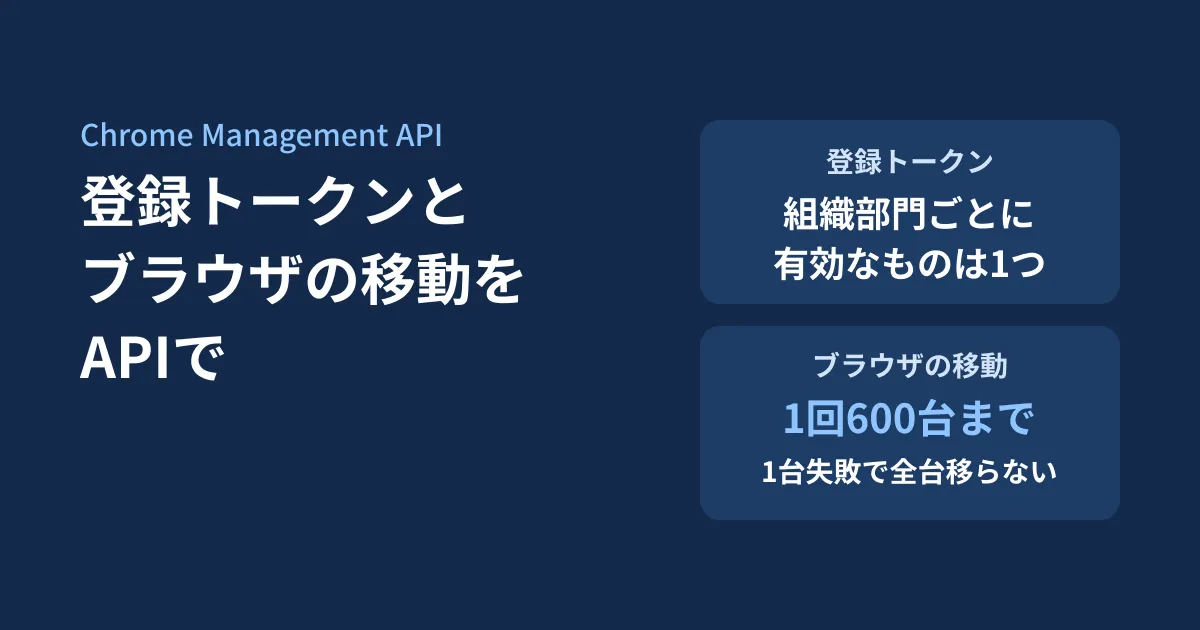
Every time you hand out a new PC, you open the Admin console, find the Chrome enrollment token, copy it, and paste it into the setup guide. A contractor's engagement has ended, but the enrollment token for its organizational unit is still active. Every time someone changes departments, you move their enrolled browser to another organizational unit one device at a time. When you manage your company's Chrome browsers with Chrome Enterprise Core, manual work like this gradually piles up.
Issuing and revoking these enrollment tokens, and listing enrolled browsers and moving them between organizational units, have been added to the Chrome Management API. They appeared in the API definition (the Discovery document) in October 2026, and as of November 11 they are also in the API reference and developer guide. The same operations were already possible through endpoints of the Admin SDK Directory API (v1.1beta1). This addition reads as a rewrite of those operations in the form of the Chrome Management API. Whether you are building new automation or already have existing scripts, understanding the differences between the two makes decisions easier.
This article was written after checking the Discovery document on October 13, 2026, and was rechecked on November 11, 2026 against the original Chrome Management API reference, developer guide and code samples. We confirmed the older API using Google's Chrome Enterprise Help. The editorial team has not actually called the API (because we have not prepared admin privileges or credentials for testing). The reference and guide do not label the feature as a preview or similar, but we could not find release notes or an announcement, and we have not been able to confirm the date it became available.
Two resources now in the reference
Under the customer (customers) are enrollmentTokens for enrollment tokens and chromeBrowsers for enrolled browsers. Both URLs start with https://chromemanagement.googleapis.com/v1/customers/{customer}/.
| Operation | HTTP | Reference description (summary) | Checkpoint |
|---|---|---|---|
enrollmentTokens.create | POST .../enrollmentTokens | Creates a browser enrollment token | Fails if the same organizational unit already has an active token |
enrollmentTokens.get / list | GET | Gets a single token or a list of tokens | Filter by state and organizational unit. Up to 100 per call |
enrollmentTokens.revoke | POST .../enrollmentTokens/{id}:revoke | Revokes a token | Records who revoked it and when |
chromeBrowsers.get / list | GET | Gets enrolled browsers (devices) | Filter by 22 fields and by group. Up to 100 per call |
chromeBrowsers.patch | PATCH | Updates admin notes (annotations) | Four fields: user, location, asset ID and notes |
chromeBrowsers.move | POST .../chromeBrowsers:move | Moves browsers to another organizational unit | Up to 600 per call. If even one fails, none are moved |
chromeBrowsers.delete | DELETE | Deletes collected data | Not stated whether this unenrolls the browser |
In the Discovery document, the two resources appeared in the version dated October 8, 2026 (revision 20261008). They are not in the September 30 definition included in Google's Node.js client. In later versions, the default sort order of the browser list changed (revision 20261020), virtual_device_id was added to the filter fields (revision 20261101), and the scopes required for each method were listed (revision 20261104). If you wrote scripts from the definition during October, review these three points.
Required scopes and admin privileges
The developer guide pages "Chrome Management Chrome Browsers API" and "Chrome Management Enrollment Tokens API" include tables of the OAuth scopes and admin privileges for each method.
| Target | Read (get, list) | Write (create, revoke, patch, move, delete) |
|---|---|---|
| Enrollment tokens | chrome.management.enrollmenttokens.readonly or chrome.management.enrollmenttokens | chrome.management.enrollmenttokens |
| Browser | chrome.management.browsers.readonly or chrome.management.browsers | chrome.management.browsers |
Each scope is a name that follows https://www.googleapis.com/auth/. For both APIs, the admin privilege is "Services > Chrome Management > Settings > Managed Browsers" in the Admin console. For read-only access, the "Read" privilege under it is enough. The guide says, "Note: administrator roles can be assigned directly to a Service Account.", so you can also assign an admin role directly to a service account. If you only want to automate exporting the list, you can limit it to the .readonly scope and the "Read" privilege.
Note that the API's Initial Setup guide lists only three example scopes to add to the OAuth consent screen, Reports, App Details and Telemetry, and does not include the scopes for these two APIs.
Differences from the older API (Directory API v1.1beta1)
The Chrome Enterprise Help articles "Use the Chrome Enterprise Core API" and "Use the Chrome Browser Enrollment Token API" explain how to use https://www.googleapis.com/admin/directory/v1.1beta1/customer/{my_customer|customerId}/... endpoints to list, get, update annotations on, delete and move browsers between organizational units (moveChromeBrowsersToOu), and to list, create and revoke enrollment tokens. The Discovery document for this version is not public (requesting it returns 404), and the Admin SDK definition (directory_v1) has no resources for Chrome browsers or enrollment tokens either.
Comparing the Help articles with the new reference shows the following differences.
| Item | Older (v1.1beta1, as described in Help) | New API (Chrome Management API) |
|---|---|---|
| Token's organizational unit | Organizational unit path (org_unit_path when creating) | Organizational unit ID (orgUnitId). List filters accept either a path or an ID |
| Specifying the destination | Organizational unit path, or an ID prefixed with id: | Organizational unit ID (destinationOrgUnitId) |
| Specifying the browsers to move | Device ID (resource_ids) | resourceIds. In the code sample, in the form customers/{customer}/chromeBrowsers/{browserPermanentId} |
| Move limit | 600 per call | 600 per call. If even one fails, none are moved |
| Token expiration | Can be set with expire_time and ttl | No field for setting an expiration |
| Scope | For browsers, admin.directory.device.chromebrowsers (.readonly for read) | Separate scopes for browsers and tokens, as in the table above |
| Specifying the customer | my_customer can be used | The code sample shows that my_customer can be used |
We found no deprecation or migration notice for the older API in the Help articles. For now, the official documentation gives no reason to rewrite working scripts right away.
Enrollment tokens: "only one active token per organizational unit"
What you specify when creating a token
You can specify the following three items when creating a token.
- Organizational unit
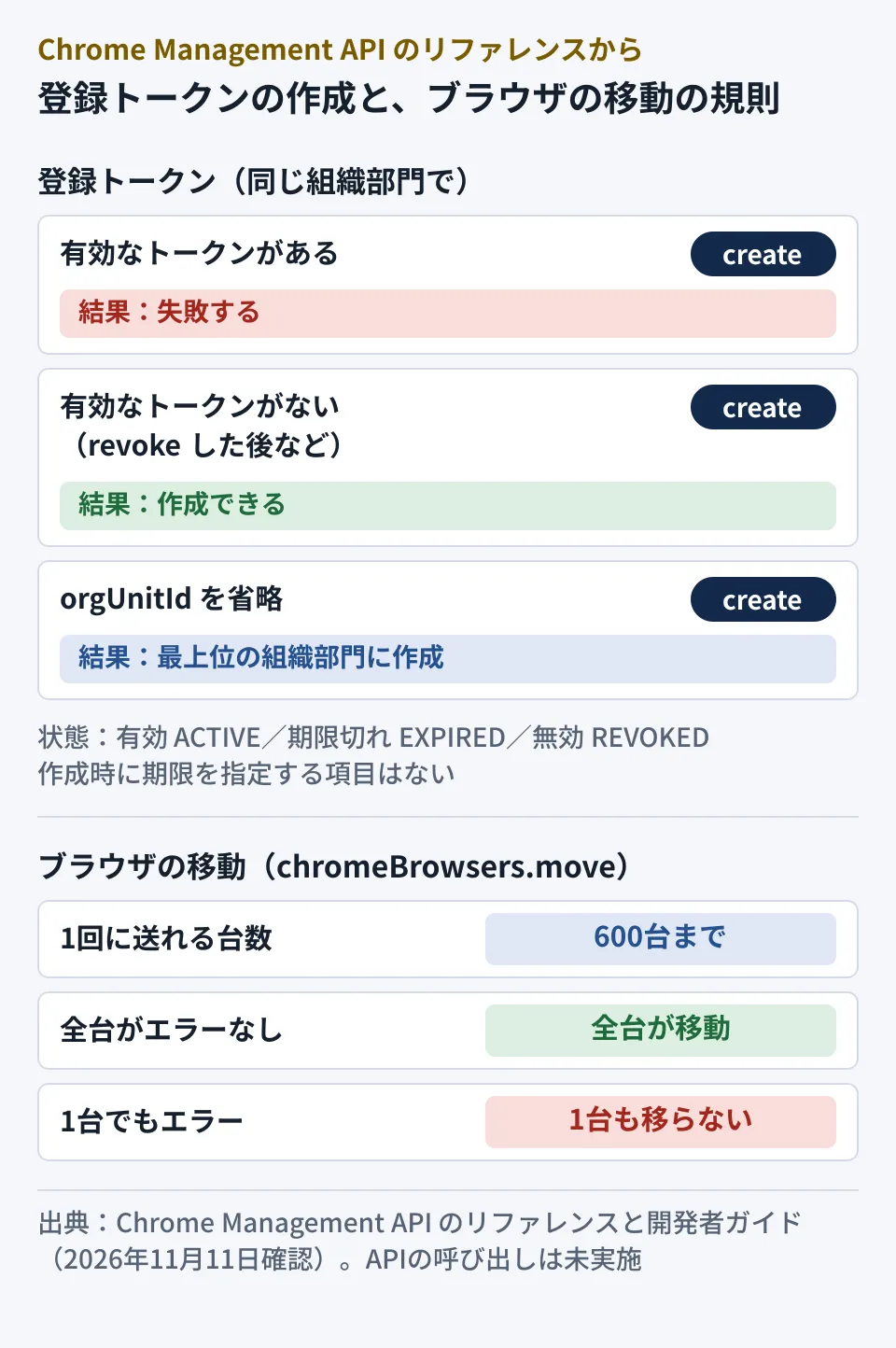
orgUnitId: If omitted, the token is for the top-level organizational unit ("If not set, the token is created for the root organization unit."). You specify the organizational unit ID, not a path (a notation like/営業部) - Type
tokenType: Currently the only option is for Chrome browsers (ENROLLMENT_TOKEN_TYPE_CHROME_BROWSER), which is also the default if omitted - ID
enrollmentTokenId: An optional query parameter. You can assign a value of 1 to 63 characters made up of alphanumerics and._-that is unique within the customer. If omitted, one is assigned automatically
One sentence in the reference's description of create deserves attention.
Creation fails if there is already an active token for this customer under the same org unit.
If the same organizational unit already has an active token, you cannot create a new one. Chrome Enterprise Help also states, "For each organizational unit, there can only be one active enrollment token." A design that creates a new token every time a PC is handed out will fail the second time. Write the issuing script so that it first uses list to look for a token whose state is active (ACTIVE) and uses it if one exists, and, if you want to replace it, runs revoke and then create.
States and the records that remain
A token's state (state) is one of three: active (ACTIVE), expired (EXPIRED) or revoked (REVOKED). The ID of the creator (creatorId) and the creation time, and the ID of the person who revoked it (revokerId) and the revocation time (revokeTime), are recorded. You can retrieve from the API who issued a token and when, and when it was stopped.
On the other hand, the reference's token fields include none for setting an expiration. Although an expired state exists, neither the reference nor the guide explains what makes a token expire. The older API let you set an expiration (expire_time, ttl) when creating a token, but the new API has no such field. Rather than relying on expiration, the reliable approach is to stop tokens for organizational units you no longer need with revoke. According to Help, revoking a token does not unenroll browsers already enrolled with it ("Devices that you already enrolled with the revoked token remain active and enrolled.").
list can filter by state (token_state), organizational unit path (org_unit_path) and ID (org_unit_id), and type (device_type), with conditions joined by AND. The guide's code sample includes an example like token_state=ACTIVE AND org_unit_path=/Marketing.
Handling token values
The token value (token) is described as a value stored on the device and used to identify it in enrollment requests. Treat it as a value that can enroll browsers in that organizational unit: rather than pasting it in plain text into setup guides or chats, it is safer to pass it as a secret through your deployment tool.
Filter the browser list and move up to 600 at once
Filtering and sorting the list
chromeBrowsers.list can filter by 22 fields, including machine name, OS, version, last user, last activity time, organizational unit and admin annotations, as well as by Cloud Identity group (in_group("groups/{groupId}")). Conditions are joined by AND. If you write only a string without a field name, it searches all indexed string fields.
Date and time fields support =, <= and >=, with values in RFC 3339 format enclosed in double quotes. For example, extracting browsers whose last activity time (last_activity_time) is three or more months ago gives you candidates for PCs that are no longer in use. The wildcard * works only for machine name, asset ID and version.
If you do not specify a sort order, results are returned in ascending order of browser ID (browser_permanent_id). To see the newest first, add desc to orderBy, as in last_activity_time desc. Each call returns up to 100 items, and you get the rest with pageToken.
The returned fields include the serial number, machine name, OS, version and channel for each Chrome installation, and recent users, as well as deviceIdCollision, which indicates that multiple devices may be using the same device ID. If you distribute PCs by cloning a disk image, it is worth checking.
Updating admin annotations
patch can change four fields: user (annotatedUser), location (annotatedLocation), asset ID (annotatedAssetId) and notes (annotatedNotes). The others are "Output only". You specify the fields to change with updateMask. If you align asset IDs with your asset register, you can search by the register's numbers.
Moves are "all or nothing"
chromeBrowsers.move takes the destination organizational unit ID (destinationOrgUnitId) and the list of browsers to move (resourceIds). The limit is 600 per call ("A maximum of 600 browsers may be moved per request."). The reference's description says the following.
If there is an error while moving any of the browsers, none of the browsers will be moved.
If even one browser causes an error, none are moved. No half-finished state is left behind, but you need to check the targets in a failed batch and resend it. The response body on success is empty, and the reference does not say whether a failure response tells you which browser caused it.
Structuring automation based on the official documentation
What the official documentation does not tell you
These are the points to verify in a test organizational unit before implementing.
- What
deletedeletes. The reference describes it as "Deletes the data collected from a Chrome browser profile." According to Help, deleting a browser in the Admin console unenrolls it and removes cloud policies from the device. It is not stated whether the API'sdeletebehaves the same way. Do not call it casually just to remove a device from your inventory - The values to put in
resourceIds. The reference only says "List of resource IDs". The guide's code sample uses the formcustomers/{customer}/chromeBrowsers/{browserPermanentId}, and it is not stated whether you can pass browser IDs alone - The conditions under which a token expires
- How
my_customeris handled. The code sample says "ID of the customer or literal my_customer", but the reference's description of each method shows only the formcustomers/{customer} - The availability date and eligible editions. We could not find a release notes page for the Chrome Management API, and found no announcement on the Google Workspace Updates blog
We cover gradually restricting extensions from the browser management console in Managing extensions with Chrome Enterprise Core, and forcing updates to keep versions consistent in Rolling out urgent Chrome updates across the company. For using the same Chrome Management API to take inventory of extension and SaaS usage, see Getting Chrome extension risk assessments via the API and Taking inventory of shadow AI with the Chrome Management API.
Steps the editorial team suggests
Based on the documentation above, here is what the editorial team suggests.
- Decide your organizational unit design first. Both tokens and browser moves are specified by organizational unit ID. For how to divide units by department or contractor, see Separating departments with organizational units (OUs). You can find the ID in
orgUnitIdof the Directory API's organizational units (orgunits) - Separate privileges by purpose. Give an inventory-only system the
.readonlyscope and the "Read" privilege under "Managed Browsers", and give a system that issues tokens or moves browsers the write scopes and privileges - For tokens, "look before you create". Use
listto search by organizational unit andACTIVE, and if none is found, runcreate. To replace a token, runrevokeand thencreate - For contractor or time-limited organizational units, run
revokewhen they end. Do not rely on an expiration field - Export the list once a month. Check the last activity time, version and
deviceIdCollisionto identify candidates for unused or cloned PCs - Split moves into batches of 600 or fewer, and try them first in a test organizational unit. Confirm the all-or-nothing failure behavior and the format of the values for
resourceIdsbefore using it for real department transfers
POST https://chromemanagement.googleapis.com/v1/customers/my_customer/chromeBrowsers:move
Authorization: Bearer (chrome.management.browsers のスコープを持つアクセストークン)
Content-Type: application/json

{
  "destinationOrgUnitId": "(移動先の組織部門のID)",
  "resourceIds": [
    "customers/my_customer/chromeBrowsers/(ブラウザのID)",
    "customers/my_customer/chromeBrowsers/(ブラウザのID)"
  ]
}
The format above arranges the fields to match the developer guide's code sample; the editorial team has not sent it.
Scope of verification
On October 13, 2026, we compared the Chrome Management API Discovery document (revision 20261008) with discovery/chromemanagement-v1.json (revision 20260930) in googleapis/google-api-nodejs-client (a documentation review). On November 11, 2026, we opened and cross-checked the Chrome Management API reference (each method of customers.enrollmentTokens and customers.chromeBrowsers), the developer guide (Chrome Browsers API, Enrollment Tokens API, their code samples and Initial Setup), the Discovery document (revision 20261109), and three Chrome Enterprise Help articles describing the older API. We have not tried calling the API, viewing the Admin console, or enrolling devices. We have not been able to confirm the availability date, eligible editions or pricing conditions.
For automating Chrome browser management or Google Workspace operations, contact us through our free IT and Google Workspace consultation.
References
- Chrome Management API — REST Resource: customers.enrollmentTokens
- Chrome Management API — REST Resource: customers.chromeBrowsers
- Chrome Management API — Method: customers.chromeBrowsers.move
- Chrome Management API — Chrome Management Chrome Browsers API (guide)
- Chrome Management API — Chrome Management Enrollment Tokens API (guide)
- Chrome Management API — Code Samples for the Chrome Management Chrome Browsers API
- Chrome Management API — Code Samples for the Chrome Management Enrollment Tokens API
- Chrome Management API — Discovery document
- Chrome Enterprise Help — Use the Chrome Enterprise Core API (older API)
- Chrome Enterprise Help — Use the Chrome Browser Enrollment Token API (older API)
- Chrome Enterprise Help — Enroll cloud-managed Chrome browsers