"Ever since our Tuesday morning all-hands meetings moved to Meet, internal file sharing freezes during that time slot." This feedback came from a design firm with about thirty employees. Everyone joined from the same office using a single internet line, dragging down colleagues who weren't even participating in the meeting.
In situations like this, the initial proposal is almost always to increase network bandwidth. Quotes are gathered, installation dates scheduled, and monthly fees go up. Yet even after upgrades, network congestion often fails to disappear completely. Video conferencing traffic tends to consume whatever excess bandwidth is available. If the meeting simply absorbs the expanded capacity, the actual user experience remains unchanged.
Before investing in new network lines, there is a setting in the Admin console worth reviewing. Its behavior changed significantly in late June 2026.
"Limit video bandwidth" now applies to downlink traffic
Google Meet includes an Admin console setting to restrict video bandwidth across an organizational unit. Previously, this setting only restricted uplink traffic (what endpoints send out). In other words, while it capped outgoing camera video, it did nothing to restrict the volume of video received from other participants.
With the update rolled out starting June 29, 2026, this setting now applies to downlink traffic (incoming video) as well (Updated admin setting for improved video quality in Google Meet — Google Workspace Updates).
This proves especially effective in situations like the opening example: many people joining the same meeting from the same office. Picture a 20-person call where all attendees sit in the same building. Under the old setting, the 19 incoming video streams received by each device were unrestricted. When 20 laptops each pull 19 streams, the office's download bandwidth is easily saturated. The change applies limits right here.
Under the same update, uplink bandwidth allocation has been increased for two-person calls to improve quality. The strategy caps bandwidth during large meetings while maintaining high visual clarity for 1:1 sales negotiations and interviews.
The rollout began as a gradual deployment on June 29, 2026, potentially taking over 15 days to reach all tenants. Existing administrative settings are carried over as-is. This means organizations that previously enabled this setting experienced behavioral changes without any administrator intervention. Conversely, administrators might be in a state of "remembering configuring it, but not realizing how its behavior changed". Because there is no end-user setting, individual users cannot override it.
Where it works and where it does not
Enabling this setting does not automatically make every meeting run smoothly. The conditions under which it helps are distinct.
| Status | Impact of the Bandwidth Limiting Setting |
|---|---|
| Multiple attendees joining the same meeting from the same office | Effective. Reduces downlink bandwidth consumption at the branch office |
| All attendees joining remotely from separate locations | Depends on individual home connections. Organizational settings only protect company-domain devices |
| Screen sharing during meetings is sluggish | Limited effect. Screen sharing bottlenecks usually stem from other pipeline factors |
| Large file syncs running simultaneously with meetings | Not effective. Non-meeting traffic like Drive sync is outside the scope of this setting |
| Wired connection is slow, or Wi-Fi alone is congested | Not effective. This is an issue with the local office's wireless environment |
The last two rows represent the most common misunderstandings. A significant portion of reported "sluggish Meet" issues stem from non-Meet traffic eating bandwidth or local office Wi-Fi bottlenecks. If desktop Drive syncs trigger across the team during a call, capping Meet will do nothing to improve perceived speed.
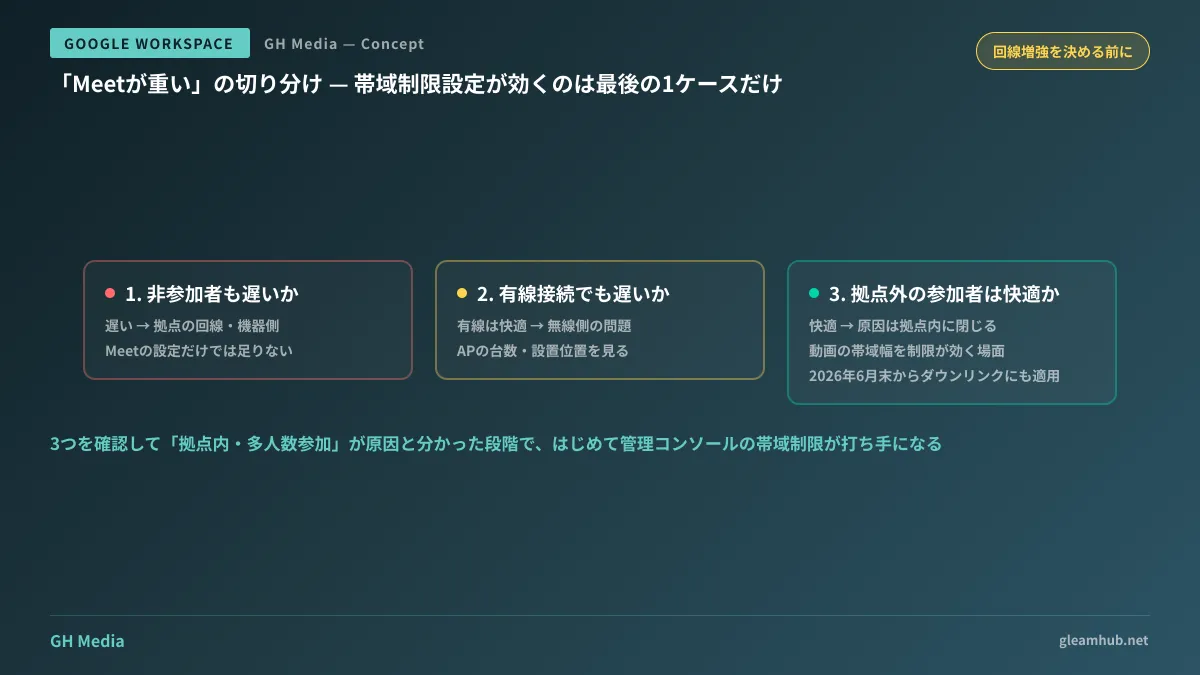
To troubleshoot efficiently, work through the following steps:
- Are employees not in the meeting also experiencing slowdowns? If yes, the issue lies with the office network connection or local networking equipment. Adjusting Meet settings alone is insufficient.
- Are users on wired Ethernet also experiencing slowness? If wired connections work fine, the problem is on the wireless side (number or placement of access points).
- Do attendees outside the office experience smooth performance in the same meeting? If they do, the issue is isolated to the local office.
Once these three checks confirm that "bottlenecks occur when multiple people join calls from the same location," enabling the bandwidth limiting setting becomes a viable solution.
How to justify lowering video quality, and who should explain it
Bandwidth limiting is, in essence, a configuration to deliberately reduce video quality. Implementing it will invariably produce complaints that "the video looks grainier than before." If applied without adequate explanation, it will be rolled back within a week.
The key talking point is what the organization expects visually from each meeting. For morning standups or company-wide announcements where seeing small faces suffices, lowering video quality does not disrupt operations. On the other hand, for meetings where teams review physical sample colors or demonstrate hands-on tasks, high visual quality is central to the work itself.
The practical approach is to differentiate settings by organizational unit (OU). Because Google Meet policies can be applied per OU, you can configure the environment so that creative teams have no bandwidth limits while headquarters administration does. Attempting a one-size-fits-all policy forces the entire organization to accommodate the department with the highest visual demands.
Note that this setting only applies to devices within your organization's domain. It cannot control bandwidth for external clients or collaborating partners. If meetings involving external participants run slowly, a different strategy is required.
To review your full meeting administration setup, cross-referencing Strengthening Google Meet Security: New Configuration Methods for Participant Approvals alongside our Google Workspace Security Settings Checklist helps catch oversights beyond bandwidth. If you are unfamiliar with Admin console navigation, keep How to Use the Google Workspace Admin Console open for guidance.
One zero-cost experiment to try before upgrading connections
Network infrastructure projects and contract upgrades cannot easily be undone once executed. Before committing, there is one zero-cost test you can run.
Pick the single busiest meeting time slot and observe what is actually consuming bandwidth during that window. If your network hardware management dashboard breaks down traffic during calls, that alone provides your answer. Even without detailed metrics, you can run a simple test by asking a few non-attendees to pause cloud file syncing during the meeting.
Once you confirm meeting traffic is indeed the root cause, apply the bandwidth limit setting to a single department for one week and evaluate user feedback. Deciding on circuit upgrades after seeing those results is plenty fast.
If you want to optimize Google Workspace operations and local office networks without dedicated IT staff, GleamHub offers free IT and Google Workspace consultations. Optimal configurations depend on specific requirements, so we provide customized quotes. Reach out to us via Contact Us.