When a report saying "Meet is running slow" lands on the IT team's desk, the standard response is largely predictable: "Could it be your internet connection?" or "Please restart your PC." Then, the following week, the exact same complaint arrives from the very same user.
This conversation repeats because the wording of the complaint does nothing to distinguish the cause. Whether a user's connection bandwidth is low, the other party's room is dark, or their computer's CPU is maxed out by other tasks, to the user, everything feels "slow." Because the name of the symptom is identical, the person listening has to start guessing from scratch every time.
The Google Admin Console retains numerical records of communication health for concluded meetings: jitter, packet loss, congestion, and participant device CPU usage. Reviewing this data lets you narrow down candidate causes by participant, device, and time window. While metrics alone will not definitively pinpoint the root cause, they dictate how subsequent remediation should proceed, making them well worth checking first.
Break down "sluggishness" into three categories before investigating
In practice, what users describe as "slow" falls into one of the following three categories. Simply asking about this upfront changes where you need to look.
- Audio cuts out or sounds robotic: Check network packet loss and jitter, and isolate audio devices as well as device load
- Video stutters or freezes / PC fans spin up: Check both CPU utilization and network conditions
- Unable to join or takes a long time to join the meeting: Separately verify authentication, permissions, browser issues, network reachability, etc.
When users are unable to enter the room, sufficient quality data may not be logged, so you should also inspect join error messages and connection status. If you start investigating while lumping these together, you will waste valuable time.
Beyond that, there is one more detail to confirm: Is it affecting only that individual, or everyone in the meeting? If everyone is affected, the issue points to the network connection or conference room equipment; if it is just one person, it points to that individual's device or home connection. This major fork is decided right here. When meeting room hardware is involved, the settings covered in Meeting Room Device and BYOD Configurations also become targets for review.
What can be seen in the Admin Console's Meet quality tool
The Google Admin Console provides a quality tool that allows tracking communication status on a per-meeting basis. Because using it requires Quality Dashboard administrative privileges, ensure privileges are allocated beforehand if you delegate investigations to personnel other than super admins. In organizations that have not organized privilege delegation in the Admin Console, work will grind to a halt here.
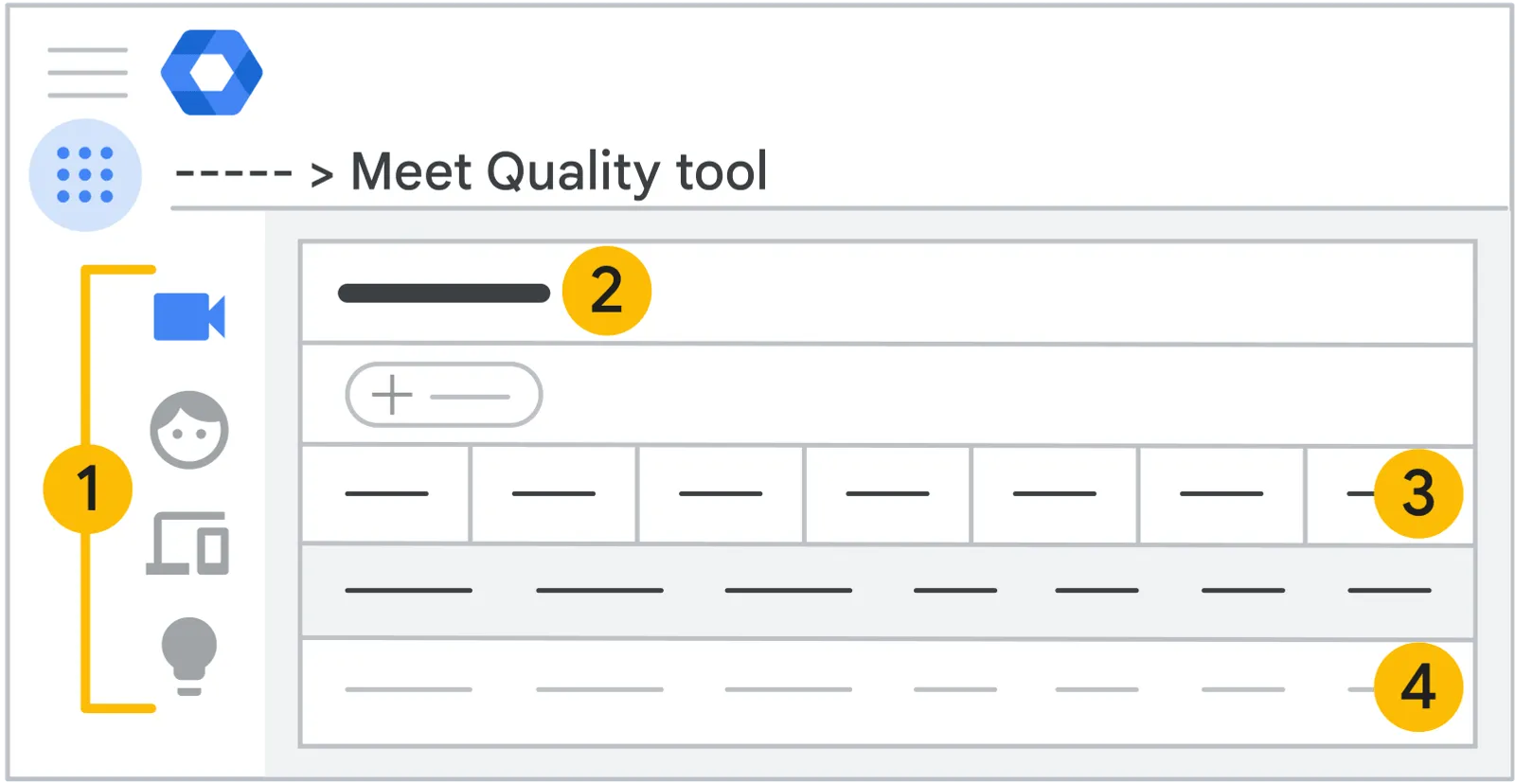
This shows the location and primary operational areas of the Meet quality tool as indicated by official Google guides. Please refer to it as a simplified diagram of the actual screen. Source: Google Workspace official documentation.
The primary metrics available for review are as follows:
| Metric | What it indicates | Benchmark condition to suspect an issue |
|---|---|---|
| Packet loss | Ratio of undelivered data | Time window coincides with reports of choppy audio |
| Jitter | Variation in packet arrival intervals | Voice is distorted only for participants with high values |
| Congestion | State of bottlenecking due to insufficient bandwidth | Concentrated in specific time windows or specific locations |
| CPU utilization | Processing load on the client device | High only for participants experiencing stuttering video |
The crucial point is that these values appear broken down by participant. If only one person out of five in a meeting experiences packet loss, you prioritize checking that participant's transmission and reception path. Even when all participants show symptoms, check the sender side and service-level disruptions in addition to the shared network. In response to the identical complaint of "Meet is running slow," the former points to an individual's home environment, whereas the latter involves facility bandwidth contracts or on-premises equipment. Because the scope and cost of the fix differ, mistaking one for the other leads to wasted investment.
The data retention period for the Meet Quality Tool (MQT) is 30 days. Certain data suffers from display latency and cannot substitute for real-time monitoring. Administrators assigned only custom Quality Dashboard privileges open it via a direct link rather than navigating through the Admin Console.
The quality tool also includes a feature that automatically suggests remedies when it detects problems. However, because these are generic recommendations, you will still ultimately need to make judgments internally that account for your company's network architecture and hardware distribution models.
Distinguish between immediate workarounds and root-cause solutions
Since users are facing difficulties "right now," temporary workarounds to keep the meeting going are necessary alongside the investigation. However, it is essential not to label temporary relief as a permanent fix.
What works immediately on the spot is lowering inbound and outbound video quality. Lower resolution to standard (360p) in Meet settings, change to a layout that displays fewer participant tiles, or turn off video entirely to use audio only if that is still insufficient. Because video consumes both bandwidth and CPU, lowering it provides immediate relief for both symptoms simultaneously. Conversely, resolving the issue this way means you will not know which of the two was the actual cause.
Root-cause remediation branches depending on how metrics manifest in the quality tool.
- Only specific individuals / only when working from home — Individual network environments. This ceases to be a technical problem and becomes a matter of company policy regarding what to subsidize and to what extent.
- Specific office locations / specific time windows — Line bandwidth or concurrent background traffic. Shifting the scheduled hours of backups or large-scale sync jobs can often resolve the issue entirely.
- CPU is high only on specific devices — Hardware generation or the impact of background resident software. Before purchasing replacements, verify what is consuming the resources.
- Only when joining from a conference room — Hardware and its setup. This may require tracing back to Meeting Room Hardware Generations and Connection Methods.
The second scenario happens frequently in practice: reports that "only meetings right after lunch are laggy" turn out to coincide with scheduled batch jobs in another department. You cannot uncover this without aligning metrics across timelines.
What to record before starting an investigation
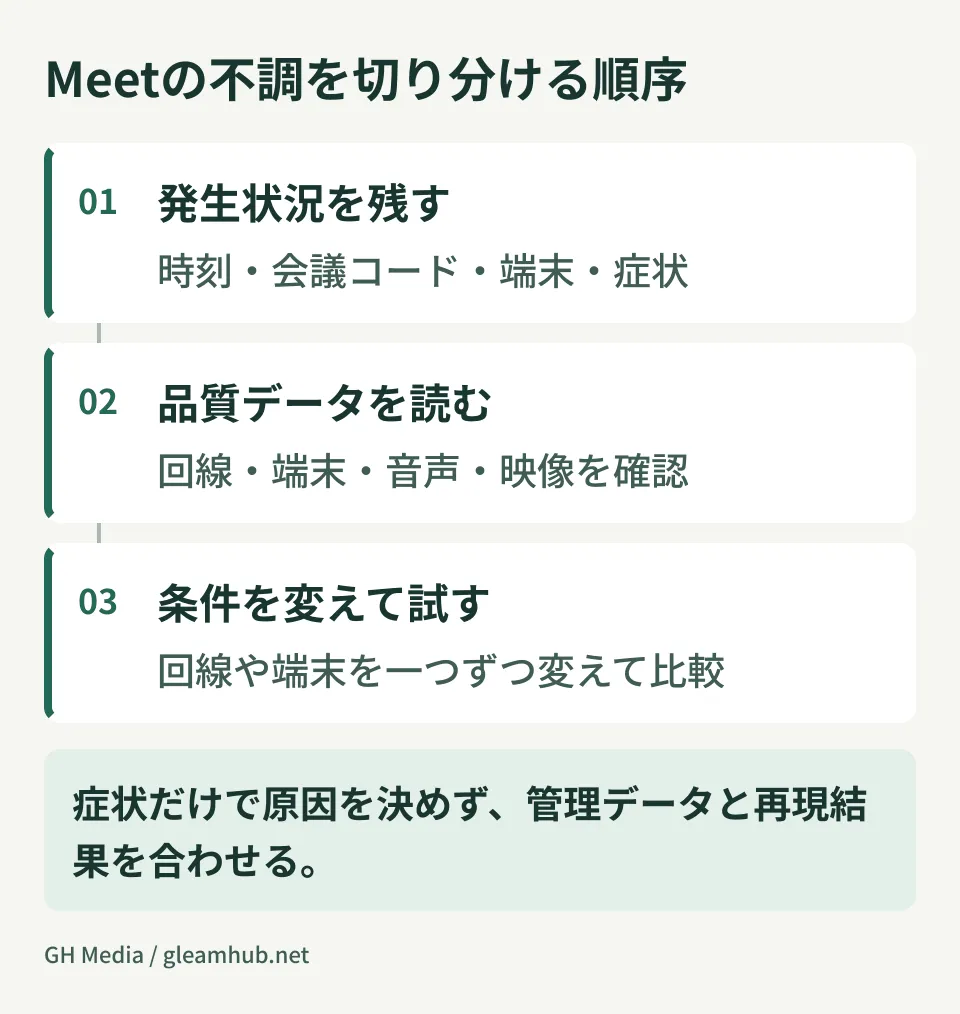
Pinpointing a meeting in the quality tool requires knowing when, whose, and which meeting it was. Yet complaints typically arrive simply saying "yesterday's meeting." If neither the meeting code nor the start time was recorded, you have to start just by hunting down the event.
Adding fields for just the following three items to your support intake channel will dramatically speed up investigations:
- Meeting code, host, and meeting date and time (approximate is acceptable)
- Number of attendees, and whether anyone other than the reporter experienced identical symptoms
- Whether the symptom affected audio, video, or entering the meeting itself
The third item simply asks directly for the triage distinction mentioned earlier. If these are filled in, the metrics to check in the quality tool are determined before even opening it. Conversely, in organizations where tickets circulate with these three left blank, support staff lose a full cycle of back-and-forth communication every time just to ask, "Which meeting was it?"
Regarding how to handle meeting records themselves, reviewing How Much to Trust Automated Meeting Minutes alongside this will help establish a complete set of operational rules around meetings.
What to do next
First, verify whether the privileges to view the Quality Dashboard have been distributed to your IT team members. If only super admins can view it, you will have to call upon an administrator for every single inquiry, which inevitably ends with "Please restart your computer."
Next, open one of the recently reported meetings in the quality tool and look at the per-participant metrics. Is it affecting everyone, or just a single person? Knowing that alone changes who you speak with next and what you discuss.
At GleamHub, our complimentary IT and Google Workspace consultations cover administrative architecture, reviewing meeting environments across office locations and remote workspaces, and organizing IT team responsibilities. Because the optimal approach depends on your current facility layout and device distribution, please consult us via Contact Us.
Sources
- Track meeting quality and statistics — Google Workspace Admin Help
- Troubleshoot video and audio quality in a meeting — Google Meet Help
- Troubleshoot joining and creating meetings — Google Meet Help
- Fix choppy audio during video calls! How to improve conversation quality through bandwidth throttling — INTERNET Watch