A client sends a Teams meeting link. Your company uses Google Workspace, and your conference room is equipped with Meet hardware. With no alternative, someone opens Teams on their laptop and streams that PC's screen and audio to the room monitor and speakers. Because the camera isn't facing anyone directly, the other party cannot tell who is speaking.
This workaround can sometimes be resolved through interoperability between Google Meet and Microsoft Teams. However, the reality is that the conditions for "sometimes" are narrower than many companies think.
What can now be connected
In February 2026, Google began rolling out a mechanism allowing direct participation in Microsoft Teams meetings from Meet room devices, and in Google Meet meetings from Teams room devices. The admin console settings began rolling out on February 3, with user-facing availability rolling out progressively starting February 16.
The initial scope covered combinations of Chrome OS-based Google Meet Rooms and Windows-based Microsoft Teams Rooms. Since late August 2026, this has expanded to Android (AOSP)-based Meet hardware and AOSP-based Teams Rooms devices, with some models still in early preview. To reliably verify whether your company's hardware qualifies, it is best to check the device requirements in the relevant Workspace Updates article.
There are three behaviors that administrators need to keep in mind.
- This feature is enabled by default
- It can be disabled at the organizational unit (OU) level
- It does not replace existing settings in OUs where Pexip-based interoperability is already configured
In other words, if you take no action, it starts in an enabled state. Companies that have already deployed room devices may not realize that it has been enabled unintentionally.
The dividing line: This is about conference room hardware, not PCs
What is most easily misunderstood about this update is its scope.
What connects are dedicated devices installed in conference rooms with each other. It does not mean employees can now join Teams meetings from a browser on their laptop, nor has the Meet mobile app added support for Teams. The workaround mentioned at the beginning—opening the meeting on a laptop and sharing the screen—remains necessary for companies that do not possess room devices.
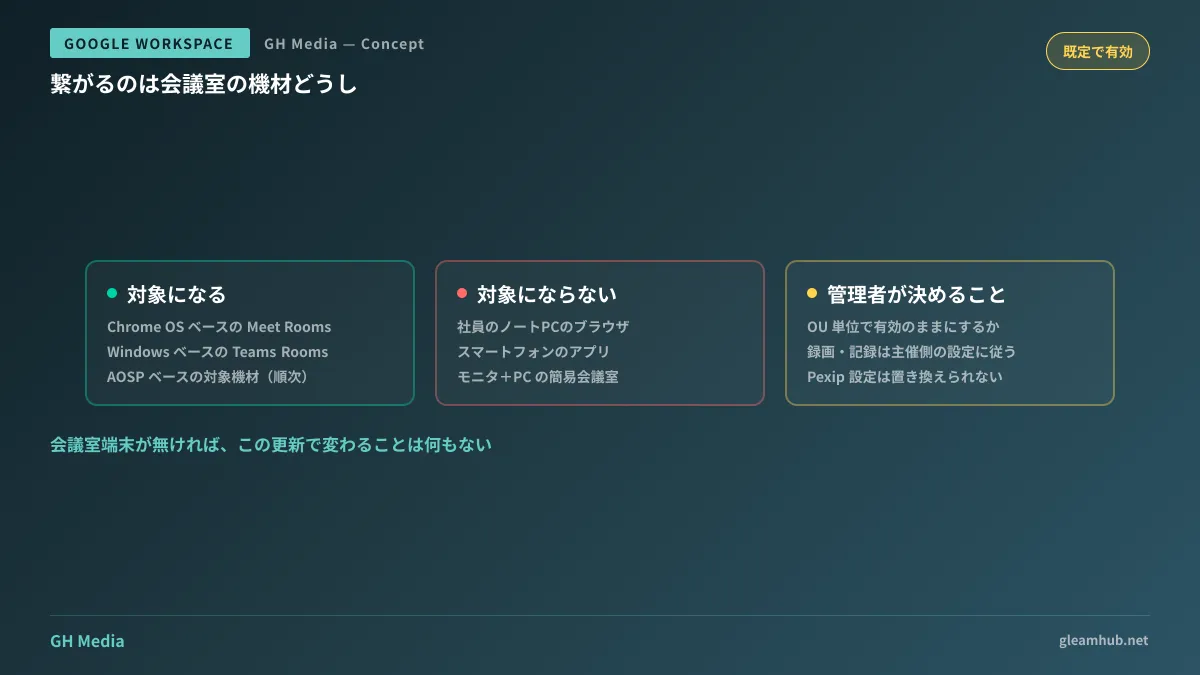
Keeping this boundary in mind, you can verify whether your company can benefit in the following order.
- Do you have dedicated Meet devices installed in your conference rooms? If not, nothing changes for you with this update
- Is that device an eligible model and OS? Whether it is Chrome OS-based or a supported AOSP-based model
- Is the client using a Teams Rooms device? If the counterparty is hosting from an individual PC rather than a room device, whether you can join directly from your room device depends on how the meeting was scheduled
In practice, a substantial percentage of companies halt at step 1. That is because a conference room that merely combines a monitor, a webcam, and a PC is not a "dedicated Meet device."
What companies without room devices should set up instead
If your setup is outside the scope, purchasing hardware is not the only answer. Arranged in order of practical operational impact, it is worth considering first whether you can shift the entry point for meetings with external participants to your own side.
When the counterparty uses Teams and your company uses Meet, if you find yourself constantly adapting to their links, consider whether you can switch to issuing a Meet meeting link from your side and having them join. Because Google Meet allows external participants without a Google account to join from a browser, the burden on their end is actually not very large. Preparing a setup where interactions with external parties are handled via guest accounts enables you to consolidate pathways, extending beyond meetings to document sharing as well.
When multilingual participants are involved, Meet's live translated captions feature can also serve as a deciding factor. Before continuing to conform to external tools, try listing the benefits of steering them toward your own environment.
Beyond that, if the necessity of joining external links still remains, that is the point at which considering the introduction of room devices makes sense. Pricing varies widely depending on hardware configurations, so we will not delve into it here.
Deciding whether to keep it enabled or turn it off
Companies with room devices must decide whether to leave this feature enabled by default or disable it at the OU level.
The criteria for this decision rests on whether your company's security policy permits joining external meetings directly from room devices. Connecting via interoperability means your conference room's video and audio will stream into a meeting hosted on another company's platform. Handling of recordings, meeting admission approvals, and permissions for screen sharing will adhere to the settings of the host's platform.
| Items to verify | When operating with it enabled | When disabling at the OU level |
|---|---|---|
| Join path for external meetings | Can join directly from room devices | Workarounds remain necessary as before |
| Handling of recordings and notes | Follows host platform settings | Can be consolidated into company-hosted meetings |
| Admin operational overhead | Continuously track status of supported models | Remains fixed once settings are changed |
In many cases, a practical middle ground is an OU-based policy: disabling the feature only for departments with stringent data handling requirements, while leaving it enabled for others. You will not get lost navigating settings items on the admin console if you understand the structure of the admin console.
What to do next
First, take note of the model names of the devices installed in your conference rooms: whether they are dedicated Meet devices or combinations of general-purpose PCs and monitors. Knowing this alone determines whether this update is relevant to your company.
If dedicated devices are installed, verify in the admin console that the interoperability setting is enabled, and consult with your information security team to determine if there are OUs that should be disabled. The fact that it is enabled by default is the most easily overlooked aspect of this update.
Conference room configurations, meeting operational design involving external parties, and Google Workspace configuration policies are available through GleamHub's free IT and Google Workspace consultations. Because feasible configurations vary depending on your current equipment and your clients' environments, please consult with us individually via our contact form.
Sources
- New built-in interoperability between Google Meet and Microsoft Teams — Google Workspace Updates
- New built-in interoperability between Google Meet and Microsoft Teams on Android (AOSP) devices, now in Early Preview — Google Workspace Updates
- Google Meet and Teams Devices Gain Cross-Platform Interoperability — Reworked