The reason people internally say "I can't find the documents" is largely not search performance, but rather that storage locations vary by person. The same proposal gets scattered across an employee's My Drive, Chat attachments, and email drafts. What happens if document volume surges while this condition is left unaddressed?
The new Workspace behavior rolling out gradually from September 2, 2026, triggers precisely that surge in created volume. It is a useful feature, but if implemented in the wrong order, it will accelerate internal clutter.
What changed
Previously, to have Gemini create something, you had to ask from within that specific app—built on the premise that if you wanted to build slides, you opened Slides.
With this update, you can now request tasks from Gemini from whichever app you are in. You can make requests directly from Gmail, Chat, Drive, Docs, or Slides, and Gemini will work behind the scenes to generate formatted documents, structured spreadsheets, and styled slides. The generated files are saved to Drive. According to the official announcement, sending emails and scheduling meetings include a confirmation card shown before execution, allowing users to review, edit, and approve them. Be sure to review file generation separately from sending items externally and finalizing schedules.
In other words, the task of switching between apps itself disappears. Gemini effectively acts as a central command hub spanning the entirety of Workspace. This direction is an extension of the trend we outlined in Automating SME Operations with Google Workspace Intelligence.
At present, only English is supported, and usage counts toward the advanced AI feature limits of each app. For companies operating in a Japanese-language environment, this serves as a grace period. There is no need to rush to disable it; rather, the right approach is to treat this as time to establish storage and sharing rules before adoption spreads.
Storage locations matter before prompt generation
A common request during rollout consultations is: "We want to start with user training." That gets the order backward.
Features that accelerate document creation add even more confusion to organizations without defined storage destination designs. In companies where files currently pile up in My Drive, files generated by Gemini will also pile up in My Drive. This simply means that files that become invisible the moment an employee leaves will multiply at a faster pace than before.
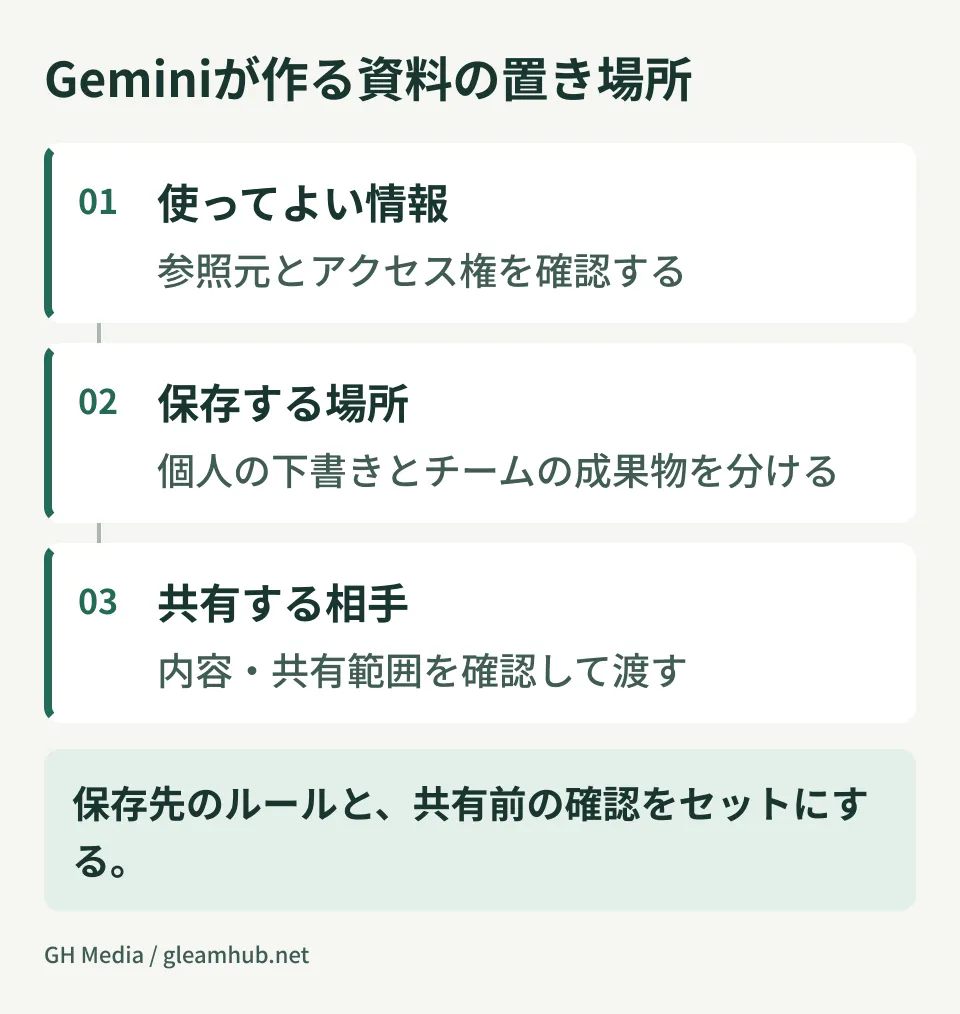
There are three things you should decide first.
- Where the team stores generated assets. Confirm where auto-generated files are saved during pilot testing, and designate who is responsible for moving necessary files to shared drives and the procedure for doing so. Administrators cannot necessarily mandate a single initial storage location across the board. We summarized our criteria for making transition decisions in Are Your Company Files Left to Individual Discretion?
- How cross-departmental requests are handled. Gemini creates content based on information accessible to the person making the request. In organizations with loose permission management, figures that should not normally be visible will end up in documents. This is not a system bug; it simply makes permissions that were already open visible.
- Distinguishing drafts from finalized versions. When judged solely by appearance, well-formatted slides created by AI are indistinguishable from finalized versions. Unless separated by folder or filename conventions, drafts will leak outside the company.
Disabling the feature will not fix unintended visibility
Let us elaborate on the second point. When Gemini begins operating across apps, gaps in permission design surface in the form of generated documents.
For example, suppose a list of labor costs was placed in a shared drive accessible to all employees. Previously, no one searched for it, so it never became an issue. Once cross-app summaries can be generated, it will appear in documents right in front of users without anyone actively looking for it.
Disabling the feature at this point still leaves those open permissions intact. What you should do while it is disabled is conduct an inventory of folders open company-wide. We discussed layering defenses with labels and DLP in What to Check When Label-Based DLP Rules Are Not Working. Reviewing that together will make it easier to organize your priorities.
Ensuring creator accountability can be tracked later
There is one more talking point that will have lasting impact later: whether you can explain afterward who requested the generated document and what information it was built on.
Previously, the person who created a document was recorded as the file author. When Gemini creates files behind the scenes, the author remains the person who made the request, but a situation can arise where even the author does not know the source of the contents. Figures from another internal department could be mixed into materials prepared for clients without the creator noticing. This is a very real risk.
The countermeasure is not difficult: draw a clear line ensuring that human review verifies the source of the figures before sending any materials outside the company. While verifying everything is impossible, limiting the scope strictly to external materials keeps the volume manageable.
At the same time, please make sure you can inspect AI-related usage in audit logs. If an incident occurs and you cannot trace who did what, identifying the root cause will take significant time.
Checks to perform prior to rollout
Here are the checks administrators can perform right now.
Please verify whether your organization is on Rapid Release or Scheduled Release. This affects when the rollout reaches you. Next, determine how many units of the advanced AI feature limits are attached to which licenses. If all employees begin using it simultaneously, some departments will hit their limits within the month.
After that, pick one department to use it first. Opening it company-wide all at once will overwhelm the IT team with inquiries. A realistic approach is to run it in a single department for two weeks, see whether the storage location rules are followed, and then expand from there.
What to do next
First, check where documents currently created within your company are stored, department by department. If there is a department where My Drive is the primary workspace, that is where things will break down first under this feature.
Next, appoint someone to determine the folder structure of your shared drives. Configuring features in the Admin Console takes only a few minutes, but once storage rules are set, they will be used for years. Working backward, this is where it is truly worth investing effort first.
At GleamHub, we offer free IT and Google Workspace consultations covering shared drive design, permission audits, and Gemini feature rollout planning. Because the approach varies depending on organizational scale and current folder structures, please consult us individually. Feel free to reach out via Contact Us.