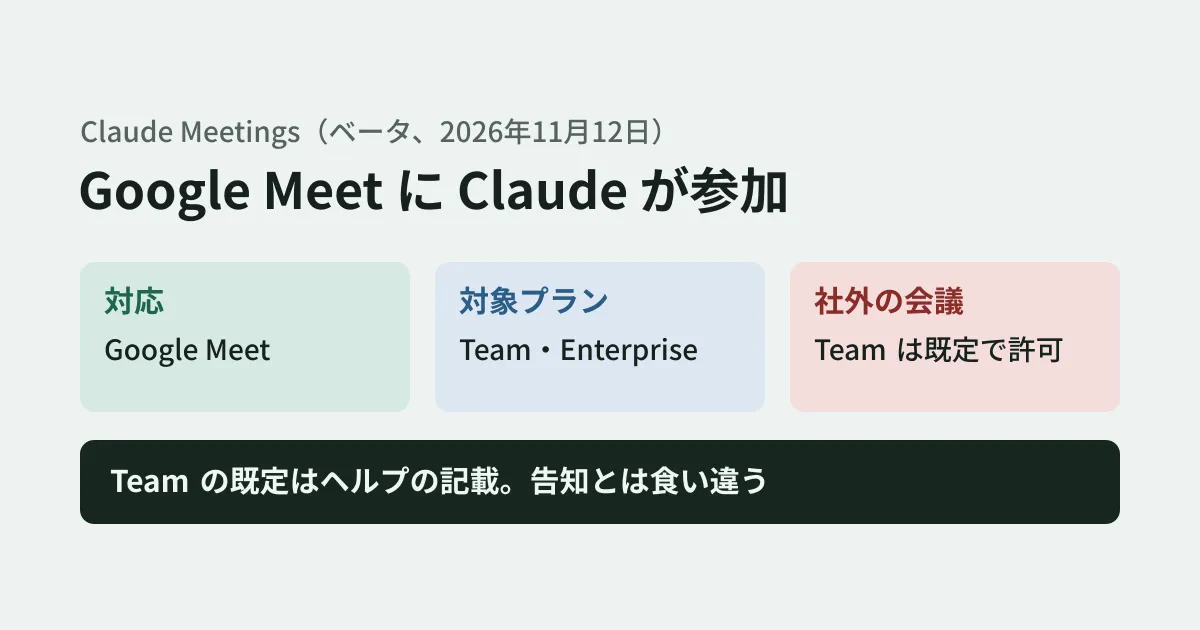
An AI note-taker from the other company joins your meeting with an outside party. Or, conversely, an AI added by someone at your own company transcribes even your business partner's remarks and keeps them on an internal page. Companies using Google Meet need to confirm before rollout where admins can stop situations like these.
Anthropic's Claude Meetings (beta) is a feature that adds Claude as a participant in a call and handles notes, transcription, and the creation of documents and whiteboards during the meeting. At present, Google Meet is the only supported meeting service. In this article, we compare the official announcement of November 12, 2026 with the Help Center articles (checked on November 13) and organize what admins (owners of the Claude organization) need to decide.
What Claude Meetings can do
The Help Center article "Use Claude Meetings" describes Claude Meetings as a feature in which Claude joins a Google Meet call as a "visible participant". It works as follows.
- Connect Google Calendar under "Meetings" on claude.ai, select an event and click "Add Claude". The Google Calendar connection must first be enabled by an organization owner
- During the call, ask questions by saying "Claude" or by writing in the Meet chat. By default, Claude answers in text in the Meet chat
- If you ask something like "Claude, make a doc", it creates documents, whiteboards, slides and so on, and attaches them to the meeting page
- It uses tools that participants have connected (for example, sending to Slack) with that person's permission. Once permission is granted the first time, it remains in effect afterward. However, for requests made by voice, it currently checks who is speaking every time
- It stays for up to 8 hours and gives notice before leaving
Claude normally joins a call without asking to be admitted. If it does ask, the host can admit it, and if the host declines, it will not join that call until someone adds it again.
There is also a setting (auto-join) that automatically has Claude join all of your events. You can exclude one-on-one meetings, and owners cannot decide this setting on behalf of users.
Defaults by plan
It is available on the Team and Enterprise plans and is being rolled out gradually as a beta. Organizations using zero data retention (ZDR), HIPAA-ready configurations or customer-managed encryption keys (CMEK) cannot use it during the beta.
The defaults described in the Help Center article "Manage Claude Meetings as an owner" are as follows. The settings are located at "Organization settings > Products > Claude Meetings (beta)".
| Configuration | Team plan default | Enterprise plan default |
|---|---|---|
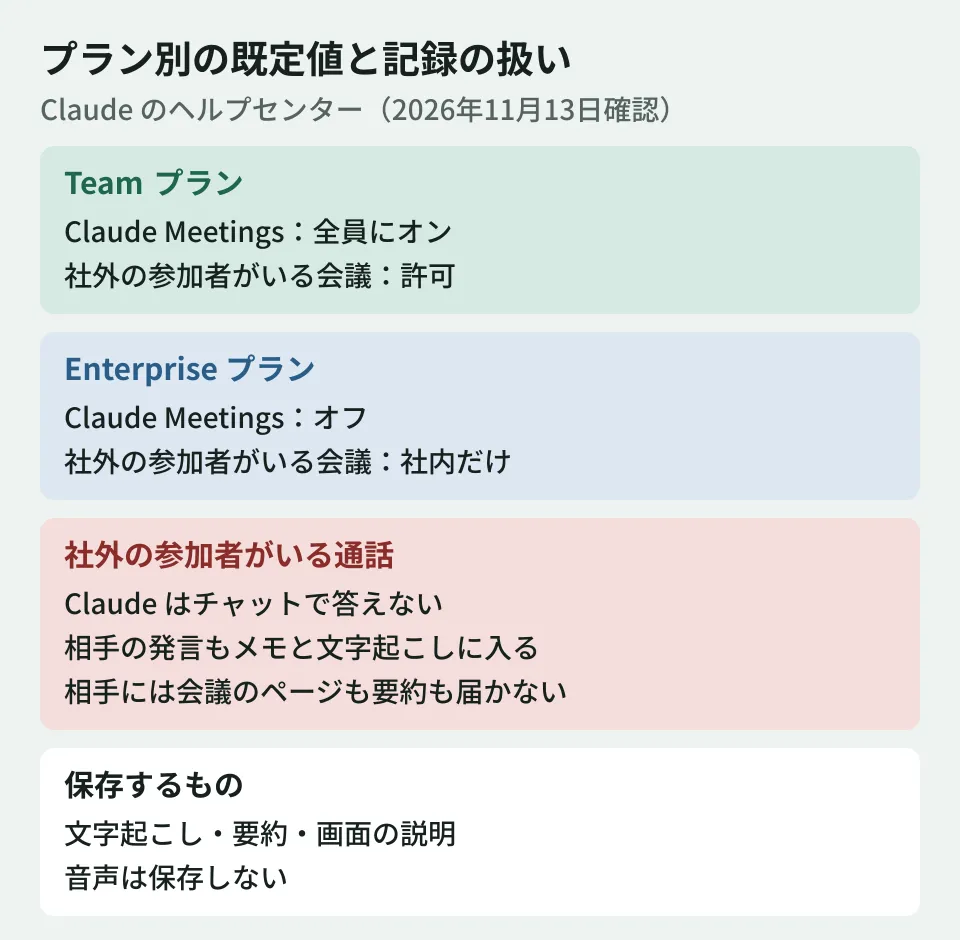
| Claude Meetings | On for everyone | Off (turn on for everyone or via custom roles) |
| Meetings with external participants (Meetings with external guests) | Allowed | Internal meetings only |
| Using members' connected tools during meetings (Members’ connectors in meetings) | No default stated | No default stated |
On the Enterprise plan, you can also assign the "Claude Meetings" and "Meetings with external guests" permissions to custom roles to control who can use them. In addition, separate from the organization settings, each user also has a "Meetings with external guests" setting (Settings > Capabilities > Meetings). The help articles do not state the default value on the user side.
If the help articles are accurate, a company on the Team plan that does nothing will start out in a state where members can add Claude even to calls with external participants.
The announcement and the help articles differ on external participants
On this point, the official materials contradict each other.
The announcement post "Introducing Claude Meetings" states, "By default, Claude is set to stay out of calls when someone from outside your organization is invited," explaining that by default it does not join calls to which people from outside the organization are invited. It does not mention any difference by plan. The Help Center, on the other hand, says, "On Team plans, Claude can join calls with outside guests by default, and an owner can turn this off." meaning that on the Team plan it can join by default even when external participants are present. For the Enterprise plan, it says "an owner must allow it first," and both sources require prior permission.
In the help article checked on November 13, 2026, the same sentence as in the announcement, "By default, Claude is set to stay out of calls…", appears under the heading "When outside guests aren’t allowed". It can be read as describing behavior in organizations that do not allow external participants, but the materials do not let us determine whether the announcement's statement also applies to the Team plan. In this case, Claude is said to leave the call if someone from outside (including another company's meeting-notes bot) joins partway through.
For this article, we have not verified on screen which of these is the actual behavior. For organizations on the Team plan, the safe approach is not to rely on the documentation but to check the value of "Meetings with external guests" in the admin console and decide for yourselves how meetings with external parties should be handled.
What is kept, and where
Based on the Help Center and the announcement, here is a summary of how records are kept.
- When Claude joins, it appears as a participant and posts a notice in the Meet chat
- What it saves are transcripts, summaries and screen descriptions; it does not save audio
- A meeting page is created on claude.ai for each meeting. Invited members of your company can view it, and it can be shared with other people in the organization
- Invited members of your company receive a summary email with a link to the page after the meeting
- In calls with external participants, Claude does not answer in the chat, and documents and whiteboards are placed on the meeting page. External participants receive neither the meeting page nor the summary email. However, what external participants say is included in the notes and transcript
- Answers written in the Meet chat are visible to everyone in the call. The chat on the meeting page is limited to the organization and is not visible to external participants
- After the meeting, you can ask Claude about past meetings you have access to from a regular chat
This means that, out of view of external participants, what they say is kept inside the company as a transcript. Both the announcement and the help articles ask you to confirm that everyone in the call has consented to transcription before adding Claude or turning on auto-join.
On pricing, according to the announcement, notes, transcription and answers that do not use connected tools are included in the Team and Enterprise plans during the beta. Documents and whiteboards created during meetings are free until February 10, 2027. Answers that use connected tools count toward that person's usage, and the help articles say this may lead to charges to the organization.
What to decide before rollout (editorial proposal)
- Decide how to handle meetings with external parties. On the Team plan, check "Meetings with external guests" and decide whether to allow AI recording in meetings with business partners and customers. Since each user also has a setting with the same name, if you allow it at the organization level, also tell people how they should configure their own setting. If you allow it, prepare a procedure for letting participants know in announcements or invitations that the meeting will be recorded.
- Decide on the use of connected tools during meetings. Use "Members’ connectors in meetings" to decide whether Claude can use internal tools during meetings. Answers in the Meet chat are visible to everyone, so particular care is needed in meetings with external participants.
- Decide who is allowed to connect Google Calendar. Claude Meetings requires a calendar connection. Review Claude's connection settings together with your company's Google Workspace app access policy.
- Decide how to use it alongside Google's Gemini note-taking feature. Google Meet also has an automatic note-taking feature, and we covered the change to its default in our article on Google Meet's automatic notes. If both take records in the same meeting, storage locations and viewing permissions are duplicated.
We have not checked Google Meet's admin settings (how external participants or external apps joining can be restricted) for this article. Please check your company's settings in the Google Workspace Admin console. For other issues when connecting Claude to your company's Google Workspace, see also our article on Claude for Google Workspace and our article on sharing Claude Artifacts externally.
Scope of verification
On November 13, 2026, we reviewed Anthropic's announcement "Introducing Claude Meetings" (November 12, 2026), the Help Center article "Use Claude Meetings" and the release notes (the November 12, 2026 entry) (documentation review). When opened on November 13, the help article showed "Updated today", and this article reflects its content at that time. We have not checked the actual screens or behavior of Claude Meetings or the settings in the Google Meet admin console. Because it is in beta, the details may change.
GleamHub's free IT and Google Workspace consultation covers policies for recording Google Meet and internal meetings and designing the scope of AI tool use. Please reach out via our contact form.