Once employees can create slides and proposals in Claude and send them straight to business partners by link, the number of things admins need to decide jumps. Which settings, when turned on, let content leave the organization? And if you turn them off later, what happens to links already sent? If you start using it without settling this, shares you thought you had stopped may remain, or, conversely, stopping them may suddenly leave clients unable to open shared materials.
For admins of Claude Team and Enterprise, we reorganize the Artifacts admin settings from the perspective of "ways content leaves the organization."
Since September 16, any conversation can create documents
According to Anthropic's release notes, starting September 16, 2026, you can create designs (Claude Design), slides (Claude Slides) and documents (Claude Docs) from any conversation with Claude (including Claude Code and the "Artifacts" tab).
The release notes state that these are available on all plans, including Free, and that on Enterprise all three are in beta and off by default until an Owner (the organization's owner) enables them. The Artifacts overview page says templates are on by default on Pro, Max and Team, and on Enterprise each template stays off until an owner enables it (the two pages describe Free differently). On Team, templates are available unless you do something.
On the admin console side, the prerequisites are as follows.
- To use Artifacts, you first need to turn on "Cloud code execution and file creation" under "Organization settings > Capabilities".
- Turning on "Artifacts" under "Organization settings > Artifacts" lets users publish to Anthropic-hosted pages and share them within the organization. Turning it off stops sharing within the organization, but links that have already been shared keep working.
- Templates (Slides, Design, Design systems and Docs) are turned on individually under "Templates". Turning one off does not affect anything already created with that template.
- Standalone Claude Design at claude.ai/design is controlled by a separate setting from the Design template (Organization settings > Claude Design).
We covered how to use Claude Design in our Claude Design beginner's guide.
Two ways out, two settings
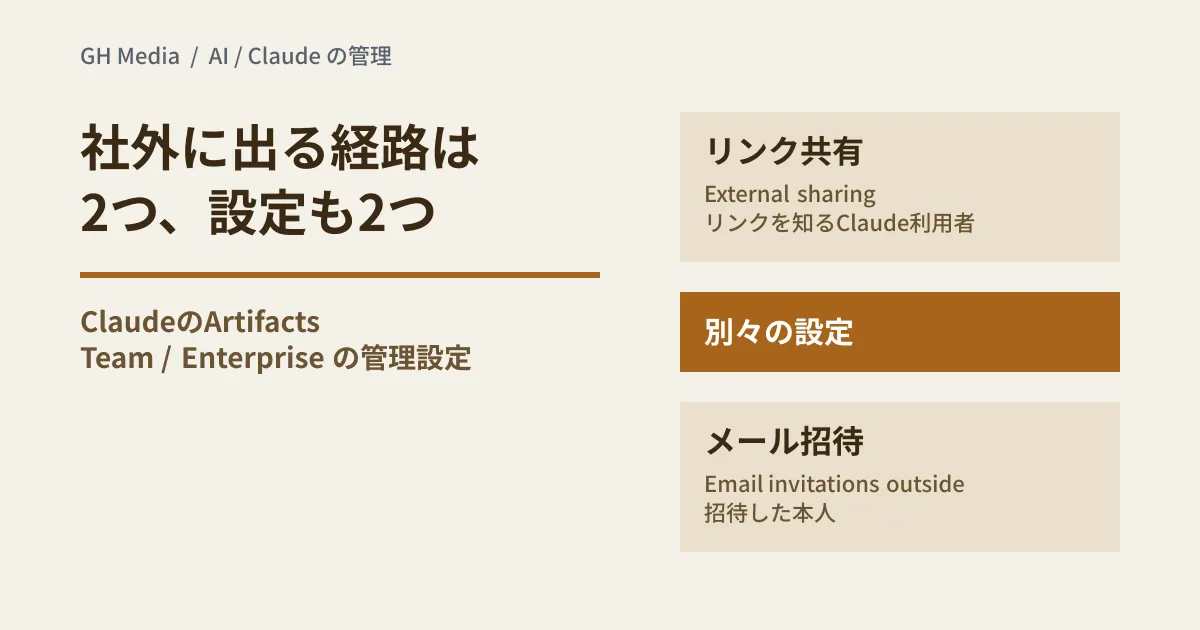
The admin help article explains that sharing outside the organization is controlled by two separate settings, and states explicitly that "turning one on does not turn on the other."
| Configuration | Who can open it | Existing shares when turned off |
|---|---|---|
| External sharing (link sharing) | Anyone who has the link and is signed in to Claude | Existing public links also stop opening until the setting is turned back on (except those allowed individually) |
| Email invitations outside your organization | Only the invited person, signed in with the invited email address | People already invited also cannot open it until the setting is turned back on. Accepted invitations are not deleted, and pending invitations expire 30 days after they were sent |
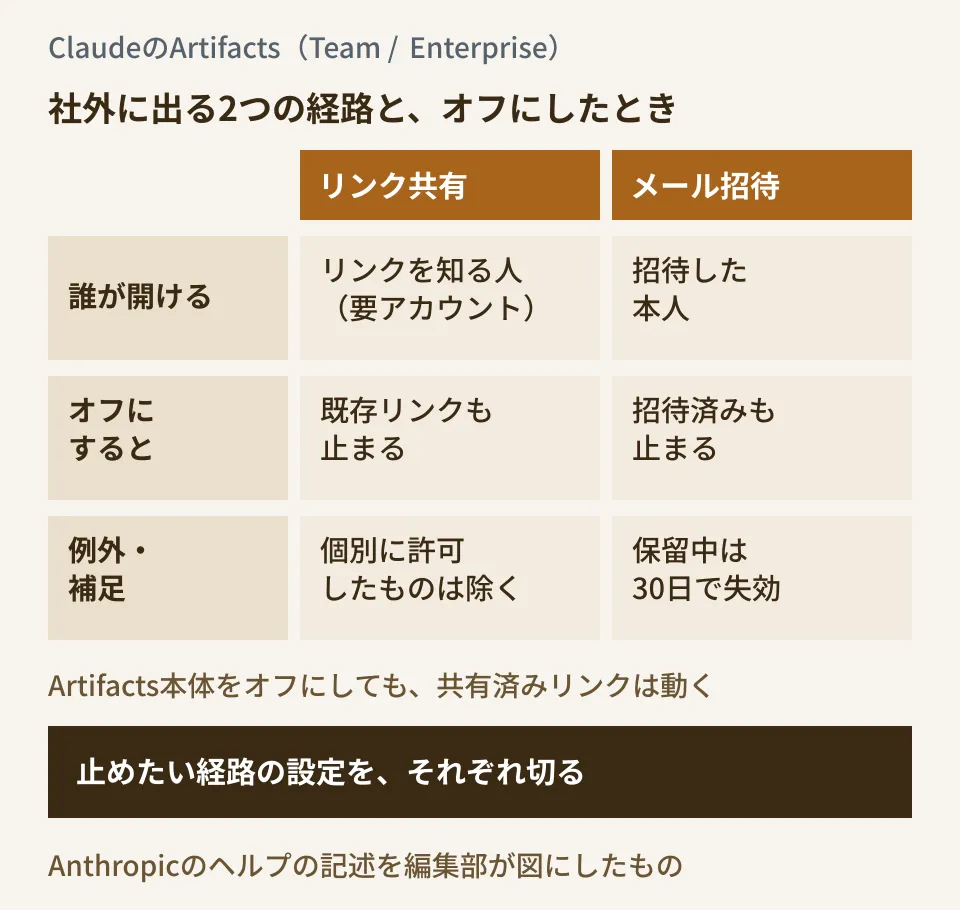
The right-hand side of the diagram is what to focus on. With either setting, turning it off also stops shares already handed to people outside the organization. By contrast, turning off Artifacts itself leaves already-shared links working, so it does not stop sharing outside the organization.
The defaults also differ. According to the sharing help article, on Team and Enterprise what you create stays within the organization by default, and the owner decides whether it can go outside. The email invitation setting alone, however, is documented as on by default on Team and off by default on Enterprise. Team admins should first check the current state of this setting.
You can also keep External sharing off and allow link sharing for specific items only. In the "Published artifacts" list, choose "Allow external sharing" from the menu of the item in question.
Invitees need a Claude account for that email address, and each item can have up to 50 external invitees (pending and accepted combined). If the same item is also shared with "Anyone with the link," invited people get the same access as anyone opening it via the link.
As with our rules for external sharing in Drive, which sorted Google Drive external sharing by "who" and "what," the starting point here is to decide "links" and "named invitations" separately.
What stays inside even with the settings on
Even with both settings on, some things cannot be shared outside the organization.
- Documents created in Claude Docs cannot be shared outside the organization yet.
- Items that use connected apps (connectors) or that ask Claude questions cannot use "Anyone with the link."
- With email invitations, in addition to Docs documents, you also cannot invite people to items that connect to other websites or whose uploaded files are still being checked or failed the check.
Conversely, the sharing help article cautions that when you share a legacy artifact created in a chat, viewers can also access that chat's attachments.
Connected apps are controlled by "Enable artifact connectors" under "Visuals" in "Organization settings > Capabilities." You can turn it on or off for the whole organization, but you cannot restrict which apps can be connected. Even for shared items, each user uses their own connections.
What is visible and what is logged
Separately from sharing scope, also check what is visible within the organization and what is logged.
- Artifact presence: a feature that shows within the organization who has the same item open and what they are doing. It is on by default on Team and Enterprise.
- Compliance API: items created in conversations and the "Artifacts" tab are logged per artifact. For Docs, events on the document itself are logged, but edits and comments within documents are not logged yet.
- Analytics: "Analytics > Claude Design" covers only usage of claude.ai/design. Standalone Claude Design does not support audit logs.
- Usage: it counts against each user's existing usage limits. There is no separate allowance.
- Departures and transfers: when someone is removed from the organization, including via an identity provider, their access is removed at the same time.
On Enterprise, custom roles let you restrict each template to specific groups. The organization setting acts as the parent switch, and a feature turned off for the organization cannot be used under any role. People outside a role's scope can still open, comment on and use items shared with them.
The order of decisions before enabling
From here on, this is the editorial team's proposal. Working backward from how the settings take effect, deciding in the following order reduces rework.
- Whether to allow email invitations to people outside the organization. This is on by default on Team. Decide based on whether your work involves sharing materials with business partners, and if you will turn it off, do so before people start using it. Turning it off later also locks out business partners who have already been invited.
- Whether to allow link sharing, or approve items individually. Turning off External sharing also stops existing public links at that moment. If you start with it off and allow only the items that need it via "Allow external sharing," you can predict the impact when you stop sharing.
- Which templates to open to whom. On Team, templates are available by default. Decide how to use Docs, bearing in mind that Docs documents cannot be shared outside the organization and their edits are not logged in the Compliance API. On Enterprise, custom roles let you do this per department.
- Whether to allow connected apps. This setting is only an organization-wide on/off; you cannot choose which apps can be connected. Decide together with the permissions on the connector side.
- Who stops sharing, and how. In "Published artifacts," you can remove people outside the organization via "Manage outside access" on items marked "Shared outside" (you cannot change their access level). Decide who will take inventory and who will check when someone leaves.
We also discussed deciding ahead of features that are on by default in ChatGPT in Word on by default from October 1. If your internal usage rules also state plainly that there are two ways out of the organization, the settings and the explanation will not contradict each other.
On September 29, 2026, we opened and cross-checked the Anthropic help center articles "Artifacts admin guide for Team and Enterprise plans," "Share artifacts" and "What are artifacts and how do I use them?" and the release notes (the September 16, 2026 entry). We have not verified the operations in Claude's admin console or the actual behavior after changing the settings. Because we have not checked the Japanese labels in the admin console, setting names are given in English. The release notes and the overview page describe the availability of templates on the Free plan differently.
For help organizing internal usage rules and permission design for AI tools, please consult GleamHub.