Open Google Chat in your organization and count down the list of spaces on the left. How many spaces are no longer used yet have never been deleted?
Project names appended with "_Old," "_2," or "_Prod" sit side by side, with the same topic being discussed in three separate places. Spaces created by employees who transferred departments remain without anyone who can act as manager. New hires ask, "Where should I post about this?" The issue is not that spaces proliferate; the issue is that nobody takes ownership of how they proliferate.
Settings to curb this on the admin side have existed for a while, but few organizations were actually able to enable them. The reason was simple: there was no way to halt only spaces. A new setting rolling out gradually from August 14, 2026, changes this equation.
Why it was unusable: The "all or nothing" dilemma
Previous Chat restriction settings were a single toggle that halted conversation creation altogether. Enabling it halted not just spaces, but 1:1 direct messages (DMs) and group DMs as well.
In daily operations, that is rarely an option. It prevented people from sending a quick message to the person sitting next to them. Consequently, even organizations struggling with space sprawl left the setting off, leaving manual inventory audits as the only way to trim expanding spaces.
The new setting provides three levels of restriction.
| Configuration | DMs and group DMs | Space creation |
|---|---|---|
| No restrictions | Allowed | Allowed |
| Restrict space creation | Allowed | Not allowed |
| Restrict all creation | Not allowed | Not allowed |
The middle tier is what has been newly introduced. It allows organizations to govern the creation of shared collaborative spaces while leaving routine communication intact.
The setting is located in the Admin console under Apps > Google Workspace > Google Chat > Chat and space restrictions. It can be applied across the entire domain, to specific organizational units (OUs), or to groups.
Decide upfront who the policy applies to
Blocking space creation uniformly across the entire company is almost always overkill. The real value of this setting lies in narrowing who can create spaces, not preventing everyone from doing so.
When defining scope, categorizing along the following three dimensions aligns well with practical operations.
1. Retain access for roles initiating workflows. People whose daily responsibilities involve project kickoffs or launching cross-departmental initiatives will be blocked if they cannot create spaces. Sales representatives, project managers, and department heads generally fall into this group.
2. Pay special attention to external-facing scopes. Spaces that include external users have a different impact from internal-only spaces when they lose managers following employee departures or transfers. How to handle external communication was covered in Managing External Group Conversations with Admin Settings.
3. Base your strategy on group-level application. While OUs follow organizational reporting lines, individuals authorized to create spaces do not always match the org chart. Creating a dedicated group and granting creation permissions exclusively to its members makes ongoing management much easier down the road.
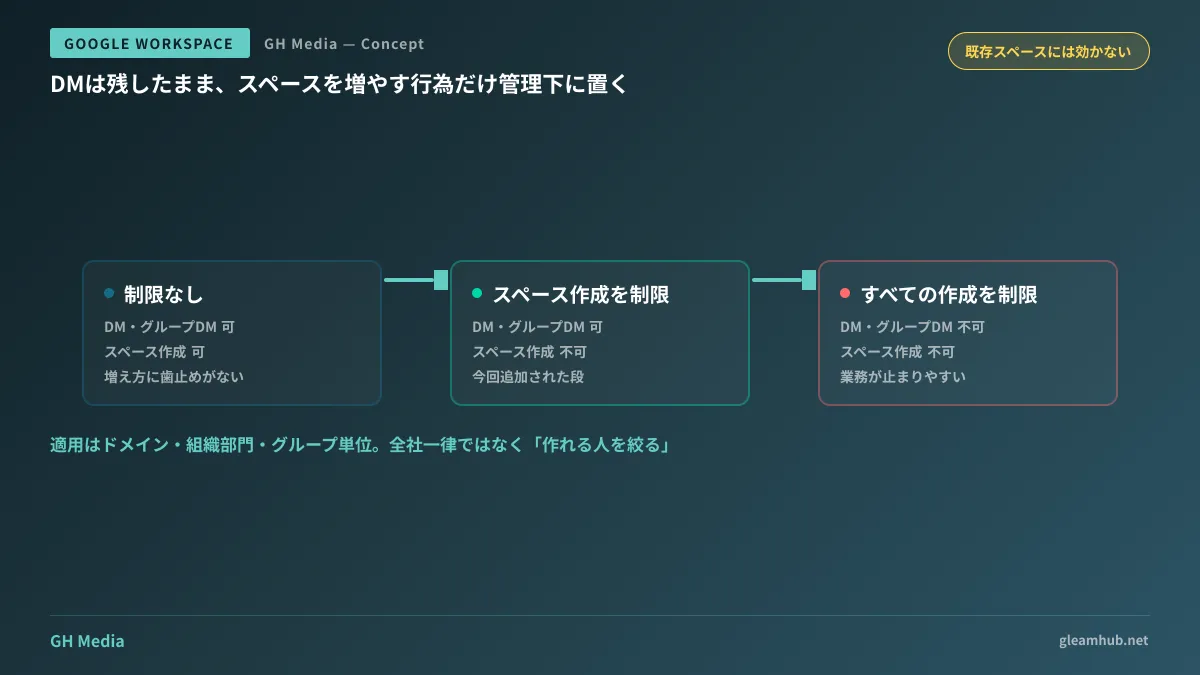
Note that this setting does nothing to spaces that already exist. It only halts future creation. Cleaning up existing spaces remains a separate task.
Prepare intake channels before disabling creation
The most common failure mode when applying restrictions is people thinking, "Since I can't make a space, I'll use a group DM instead." Space sprawl simply gets replaced by group DM sprawl—where conversation history is harder to track—leaving the situation worse than before.
Before applying restrictions, establish the following intake mechanisms.
- Establish a request intake channel. State in one sentence who to ask and how when a space is needed. Whether via a form or a dedicated Chat request space, the condition is that there must be a documented channel other than verbal requests.
- Establish minimal naming and purpose rules. Even if you limit creators, identical topics will still pop up in two places without rules. Guidelines as simple as "one space per project" and "add the completion date to the description when done" are sufficient.
- Make existing spaces discoverable. "I searched and didn't find one, so I made one" is a primary driver of duplication. Designing spaces so internal users can search for and join them is addressed in Designing Discoverable Spaces.
If you impose restrictions without the first item, ad-hoc requests to administrators will flood into Chat DMs. Because no audit trail of requests is kept, later on nobody will know why a given space was created.
Rollout schedule and what to verify
Due to gradual rollout, it may take up to 15 days for the setting to appear in your Admin console. Rollout began on August 14 for both Rapid Release and Scheduled Release domains. How the visibility of new features and internal communication timing depend on your release track was discussed in Choosing a Release Track.
Before modifying settings, it is helpful to check who is currently creating spaces. Reviewing space creation events in Admin console audit logs often reveals that actual creators are concentrated among far fewer people than expected, meaning the disruption of restrictions can be kept minimal. Conversely, if creation is widely dispersed, testing within a single department first is safer than rolling it out company-wide immediately.
What to do next
First, open your organization's Chat space list and count the number of spaces with no posts in the last three months. That represents the actual extent of current sprawl and provides evidence when explaining why restrictions are needed.
Next, create a group for "space creators" and decide who belongs in it. When the setting appears in your Admin console, all that remains is selecting the target scope. If not planned in advance, teams often default to blocking creation company-wide the day they discover the setting.
GleamHub offers free consultations for IT and Google Workspace to support establishing Google Chat governance rules, space audits and permission designs, and evaluating which tools to centralize company information in. Because the recommended approach depends on organizational scale and current usage patterns, please reach out for an individual consultation via Contact Us.
Sources
- Granular space creation restrictions now available in Google Chat — Google Workspace Updates
- Controls for restricting conversation creation in Google Chat available to more organizations — Google Workspace Updates
- Set up Chat restrictions — Google Workspace Help
- New discoverable space setting in Google Chat — Google Workspace Updates