When you switch to Google Workspace, once the accounts are created and new email is arriving, one question remains: "What happens to all the email we already have?"
Past email holds quote exchanges, instructions from business partners and the history of invoices. Because not being able to refer to it in the new environment gets in the way of work, the switchover plan needs to settle up front how, and how much of, the past email will be moved.
Import is now part of the setup flow
In an announcement on September 23, 2026, Google made generally available a feature that imports past email from IMAP-compatible email services during Google Workspace setup. The announcement names Hostinger, Zoho, Yahoo! and iCloud among its examples and covers IMAP-based email services. The feature is for admins and is available to all Google Workspace customers. It is described as already available on both Rapid Release and Scheduled Release domains.
The import option appears after you verify ownership of your domain and activate your email records. In the steps in the Admin Help Center, you select the IMAP email service in the import tool, enter the IMAP server name and test the connection, and then enter the IMAP email address and password to start the import. The import runs in the background, so you can continue with the rest of the setup in the meantime. You can also put the import off, in which case a reminder email arrives 7 days later.
The Help Center also notes points worth knowing before you start. The import copies content without deleting or modifying the original account. You can stop it partway, but whatever was imported before you stopped it stays in Workspace, and a stopped import cannot be restarted.
But this entry point covers only one user
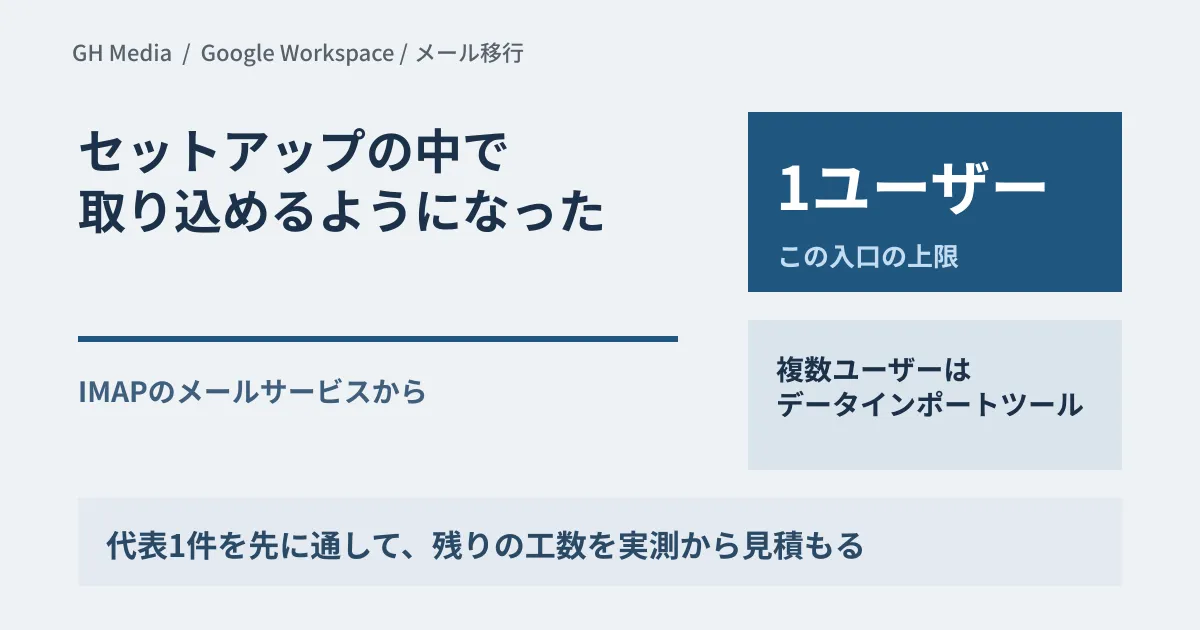
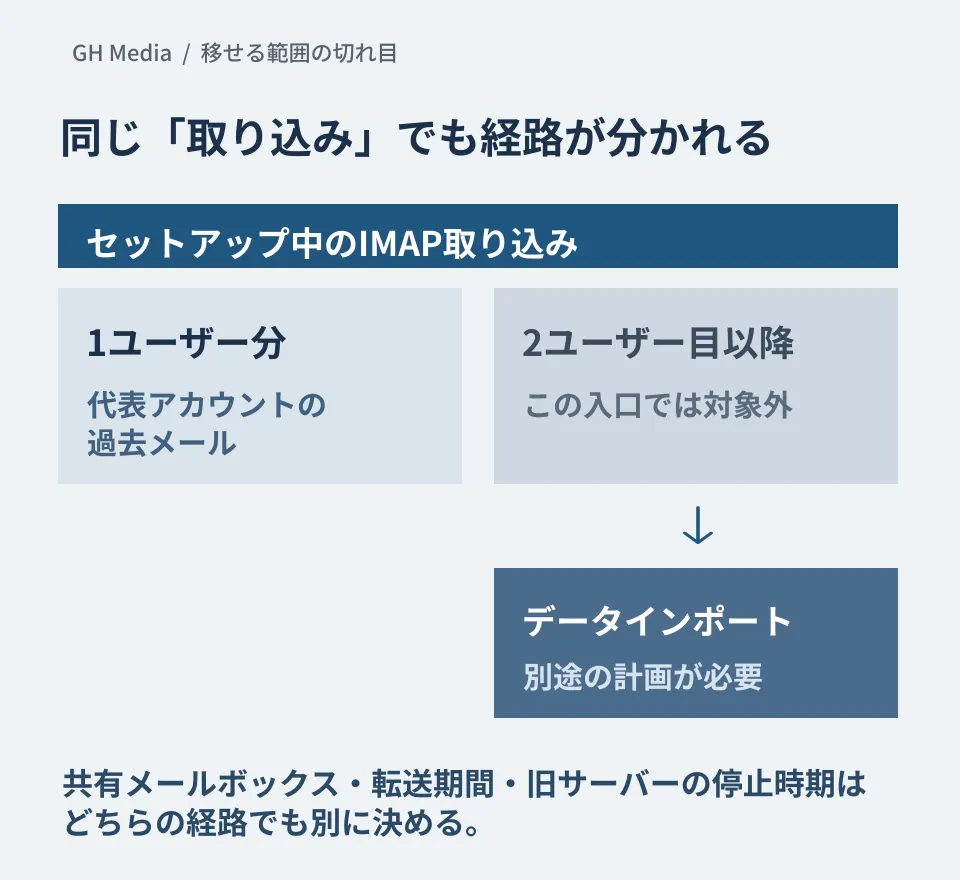
What matters is the scope. According to the announcement, this new entry point can import past email for only one user. For multiple IMAP accounts, the announcement points to the Admin Help Center procedure "Import email from an IMAP account". The flow is to move on from there to importing additional IMAP users after the import during setup has finished.
That procedure uses the data import tool in the Admin console. It is what earlier Help Center pages called the "new data migration service", and it can handle up to 100 users per import from IMAP. With 20 users or fewer, you map them one by one on screen; beyond that, you specify them in a CSV file. A super admin runs it, and the destination user accounts must be created beforehand. The tool does not create accounts.
In other words, this entry point is enough on its own in cases like the following.
| Status | Is this entry point sufficient? |
|---|---|
| A sole proprietor or one-person company moving only the representative's email | Sufficient |
| A company of a few people moving the representative's email first to see how it goes | Sufficient (import the rest with the data import tool) |
| Moving all employees' email at once | Not sufficient. Import with the data import tool (up to 100 users per import) |
| Also moving the history of shared mailboxes such as info@ | Not sufficient. The destination accounts need to be designed |
If you have several employees, it is realistic to use this entry point not as a way to move everyone, but as a way to check first, with one representative user, the connection to the old server and the result of the import. When you later import the remaining employees with the data import tool, leave the representative out. The Help Center warns that importing the same content more than once creates duplicate data in Workspace.
What you learn by running one user first
You can check the requirements on the old server's side to some extent in the Help Center. Importing from IMAP with the data import tool assumes that the IMAP server has a trusted TLS certificate and is accessible from Google services. For servers that exist only inside an internal network, for example, the Help Center directs you to GWMME (Google Workspace Migration for Microsoft Exchange). It also notes that some IMAP servers require an application-specific password and that IMAP folders and subfolders are included in the import.
However, whether your own old server meets these requirements, and how the imported email looks to users, is not known until you actually run it. By running one representative user through this entry point, you can keep a record of the connection test result, the time the import took and how folders appear before you plan for everyone.
We also covered the approach of moving one user first to check things in our article for companies whose migration stalls over past email. Our article on the data volume and operational design that drive migration costs likewise recommends measuring transfer time and error handling with a small trial migration. With this new entry point, you can complete that first user within the setup flow.
What the import does not solve
Moving past email does not mean the migration is finished. Knowing the remaining work in advance makes it less likely that your plan for switchover day falls apart.
- How to handle shared mailboxes. Whether addresses such as info@ or support@ become groups or are brought into individual accounts is a design decision. The data import tool imports into user accounts, and it cannot copy one IMAP account to multiple users (it can combine multiple IMAP accounts into one user). Decide before the import whose account the past email will go into as well.
- Email that arrives around the switchover. The import during setup starts after you activate your email records. Because past email is moved only after new email has started arriving in Google Workspace, decide how you will pick up the messages that reach the old server before and after the switch. If the address itself changes, as with Yahoo! or iCloud, also decide how long to keep forwarding from the old address.
- When to shut down the old server. Even after the import is complete, it is safer to keep a way back for a while.
- How folders appear. IMAP folders and subfolders are included in the import. Check how they are displayed in Gmail with the one-user import, and let users know in advance.
If you take the third item lightly and shut down the old server early, you will have no way to import again when something turns out to be missing. We summarized what is not imported, and where things tend to go wrong on the old server's side, in our article for companies whose migration stalls over past email.
If you are moving from Microsoft 365, the same setup flow has a separate entry point, which can import up to 10 users on the Flexible Plan. On an Annual/Fixed-Term Plan, you need to add licenses before importing. For how the conditions differ, see Google Workspace migration: which companies finish during setup.
Action items for this week
If you are considering a migration, first check the source IMAP server: whether IMAP is enabled, whether it has a trusted TLS certificate and is accessible from Google services, and whether it requires an application-specific password. A server that exists only inside an internal network falls under GWMME rather than the data import tool.
Then run one representative user through this entry point and record the time required and how folders appear. Plan the remaining employees with the data import tool based on that record, and make sure the representative is not imported a second time.
We opened and checked the Google Workspace Updates announcement (dated September 23, 2026) and the Admin Help Center articles "Import data during setup" (updated September 23, 2026), "Import email from an IMAP account" and "Migrate from IMAP servers to Google Workspace" (both updated September 18), and "About importing email with the data import tool" (updated September 22) directly on September 26, 2026. We have not verified running the import during setup, the time it takes or how folders are displayed in Gmail. How the destination Workspace account is chosen, and whether a delta import can be used after the import during setup, are not described in the announcement or the Help Center, and we could not confirm them. We have also not checked the Japanese-language labels in the Admin console. This article organizes the scope and the work that remains.
For Google Workspace migration planning or designing how to move past email, please consult GleamHub.
Sources
- Seamlessly import your emails from any IMAP server to Google Workspace — Google Workspace Updates
- Import data during setup — Google Workspace Help
- Import email from an IMAP account — Google Workspace Help
- About importing email with the data import tool — Google Workspace Help
- Migrate from IMAP servers to Google Workspace — Google Workspace Help